> For the complete documentation index, see [llms.txt](https://doc.realvirtual.io/llms.txt). Markdown versions of documentation pages are available by appending `.md` to page URLs; this page is available as [Markdown](https://doc.realvirtual.io/components-and-scripts/motion/chain-element.md).
# Chain element
Chain Elements represent individual links, buckets, or carriers in continuous chain transport systems.
{% hint style="info" %}
**New Feature**: Burst optimization support was added in realvirtual **6.0.9** (beta). Configure **MoveRigidBody** for optimal performance based on your physics needs.
{% endhint %}
## Overview
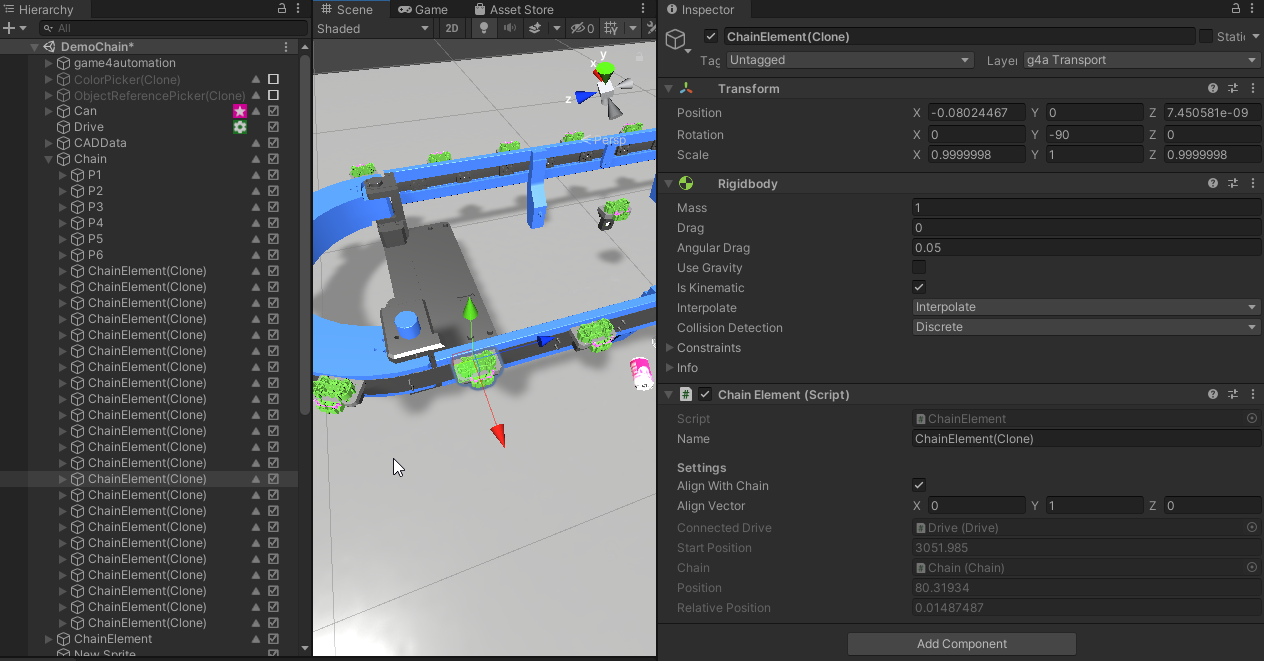
Chain Elements are the individual components that move along a chain path. Each element is automatically created and managed by the parent Chain component during simulation. Chain elements can be simple visual representations or physics-enabled objects that interact with other simulation elements.
Most properties are automatically calculated by the Chain component, with key configuration options for alignment and physics behavior.
## Properties
### Settings
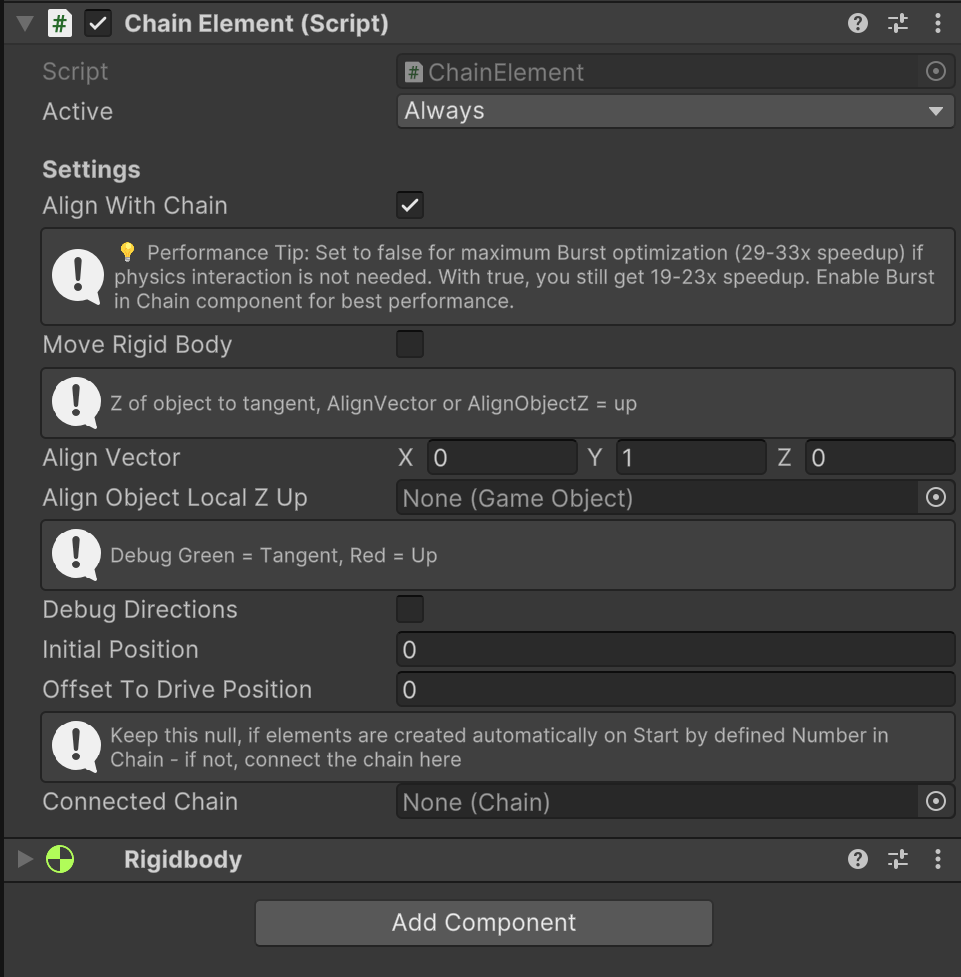
**Align With Chain** (boolean) controls whether the element automatically rotates to follow the chain's tangent direction during movement. Enable this for realistic chain behavior where elements orient along the path.
**Move Rigid Body** (boolean) determines whether physics simulation is enabled for the chain element. When enabled, the element's Rigidbody is actively moved and can interact with colliders. When disabled, only the transform is updated for visual representation, providing 29-33x performance improvement with Burst optimization compared to 19-23x with physics enabled.
ChainElement Inspector showing MoveRigidBody property with Burst optimization performance guidance
**Align Vector** (Vector3) defines the local axis used as the basis for alignment calculations when Align With Chain is enabled. This vector determines which direction on the element should point along the chain tangent.
**Align Object Local Z Up** (GameObject) optionally specifies a reference object whose forward direction defines the up vector for element alignment instead of using Align Vector.
**Debug Directions** (boolean) enables visual debugging in the Scene view showing the tangent direction (green) and up direction (red) for troubleshooting alignment issues.
**Initial Position** (float) sets the starting position of the chain element along the chain path in millimeters, configured by the Chain component during element creation.
**Offset To Drive Position** (float) adds a position offset in millimeters relative to the connected drive's position, useful for fine-tuning element placement.
**Connected Chain** (Chain reference) manually links to a specific Chain component. Leave this null for automatically generated elements, which are connected by the Chain during creation.
## Performance Optimization
### Burst Compiler Support
Chain Elements support Unity's Burst Compiler optimization when the parent Chain has Burst enabled. Configure the **MoveRigidBody** property based on your performance and physics requirements:
**Visual-Only Elements (Maximum Performance)**
* Set **MoveRigidBody = false**
* Elements follow the chain path without physics interaction
* Achieves 29-33x speedup with Burst optimization
* Use for decorative chain links, visual carriers, or non-interactive elements
**Physics-Interactive Elements**
* Set **MoveRigidBody = true**
* Elements can collide with and move other objects
* Achieves 19-23x speedup with Burst optimization
* Required when elements need to push parts, trigger sensors, or interact physically
The Chain Element Inspector displays performance guidance to help you choose the optimal setting for your use case.
## Common Use Cases
**Bucket Elevator Buckets**
* Set MoveRigidBody=false for visual-only material transport
* Buckets follow the elevator path without physics overhead
* Maximum 29-33x performance with Burst optimization
**Overhead Conveyor Carriers**
* Set MoveRigidBody=true when carriers need to interact with sensors
* Physics enables collision detection for load pickup/drop
* Maintains 19-23x speedup while preserving functionality
**Chain Links**
* Set MoveRigidBody=false for decorative chain visualization
* Pure visual representation without collision calculations
* Optimal performance for large chain installations
## Alignment Configuration
Chain elements can align with the chain path in two modes:
**Vector-Based Alignment**
* Uses the **Align Vector** property to define orientation
* Specify which local axis should point along the tangent
* Common settings: (1,0,0) for X-axis, (0,1,0) for Y-axis
**Object-Based Alignment**
* Uses **Align Object Local Z Up** reference object
* The referenced object's forward direction becomes the up vector
* Useful for complex orientation requirements
Enable **Debug Directions** to visualize:
* Green ray: Chain tangent direction (forward)
* Red ray: Up direction used for alignment