# OpenCommissioning

{% hint style="success" %}
**Special Thanks**

We would like to extend our sincere gratitude to the [OpenCommissioning](https://github.com/OpenCommissioning) team for developing and maintaining this exceptional open-source framework for industrial automation simulation. OpenCommissioning's commitment to open standards and collaborative development enables seamless integration across different simulation platforms and tools, advancing the entire virtual commissioning ecosystem.
{% endhint %}

{% hint style="info" %}
This feature was added in realvirtual **6.0.8-8217** (Professional & Starter)
{% endhint %}

## Overview

The OpenCommissioning interface integration bridges realvirtual components with the [OpenCommissioning](https://github.com/OpenCommissioning) open-source framework. OpenCommissioning provides a standardized shared memory communication system for industrial automation simulation, enabling real-time data exchange between simulation components and external control systems. OpenCommissioning uses **TwinCAT** as its realtime environment, providing deterministic execution for virtual commissioning applications. Through OpenCommissioning and Beckhoff hardware, **real fieldbus simulation** becomes possible, allowing direct connection to actual industrial fieldbus networks.

realvirtual's OpenCommissioning integration provides 7 specialized link components that automatically connect realvirtual simulation components (drives, sensors, grippers, lamps) to OpenCommissioning's communication infrastructure. This integration enables seamless interoperability with other OpenCommissioning-compatible tools and systems.

**Learn More:**

* [OpenCommissioning GitHub](https://github.com/OpenCommissioning) - Main repository and documentation
* [OC Unity Core Package](https://github.com/OpenCommissioning/OC_Unity_Core) - Unity integration package

**Key Benefits:**

* Standardized industrial communication using open-source protocols
* Zero-configuration integration with automatic activation
* Real-time bidirectional data exchange with external systems
* Compatible with existing realvirtual simulation models

<figure><img src="/files/iUbIc6U8NSif3D6AUMGt" alt=""><figcaption><p>OpenCommissioning demo scene showing realvirtual components integrated with OC Link components</p></figcaption></figure>

## Installation

**Step 1: Install OpenCommissioning Package**

Install the OpenCommissioning Unity package from GitHub using Unity Package Manager:

1. Open Unity Package Manager (Window > Package Manager)
2. Click the **+** button and select **Add package from git URL**
3. Enter: `https://github.com/OpenCommissioning/OC_Unity_Core.git`
4. Click **Add**

**Step 2: Automatic Activation**

Once the OpenCommissioning package is installed, realvirtual automatically activates the integration:

* The `REALVIRTUAL_OPENCOMMISSIONING` compiler directive is enabled
* OC Link components become available in the Component menu
* No additional configuration required

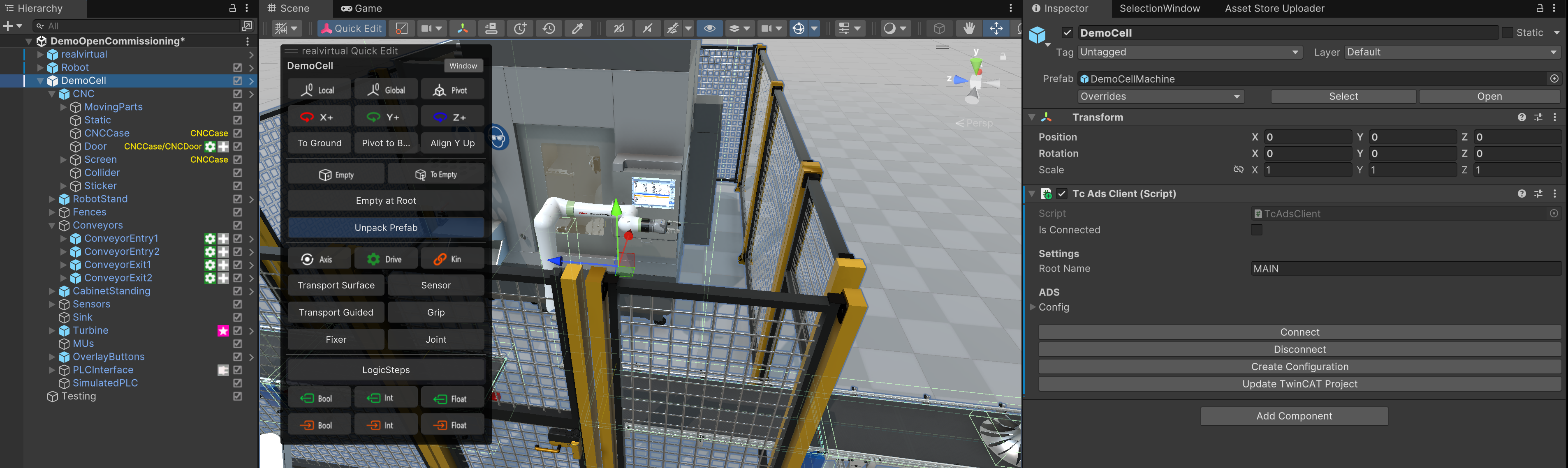
**Step 3: Add TcAdsClient Component**

Add the **TcAdsClient** component to your top-level scene GameObject:

1. Select your main scene root GameObject (e.g., "DemoCell" in the demo scene)
2. Click **Add Component** and search for "TcAdsClient"
3. Configure the TwinCAT ADS connection settings as needed

This component manages the TwinCAT ADS communication between Unity and the OpenCommissioning realtime environment.

**Step 4: Verify Installation**

Confirm successful installation by checking that **Component > realvirtual > OpenCommissioning** appears in the Unity menu with all 7 link components available.

## Available Components

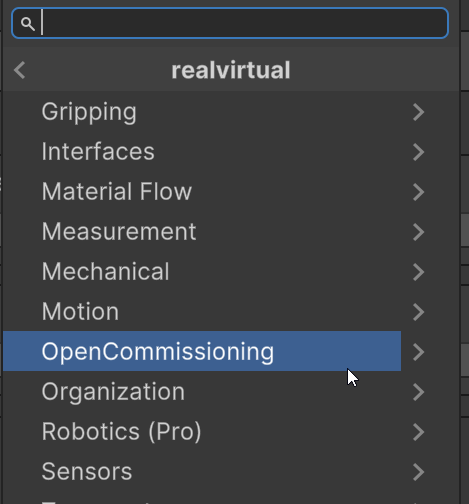
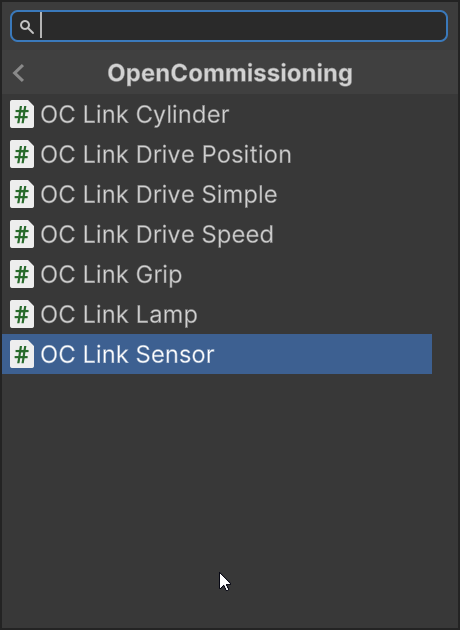
realvirtual provides 7 specialized link components that connect realvirtual simulation components to OpenCommissioning's shared memory system:

<figure><img src="/files/5vDerUz17iKi8IiztPIZ" alt=""><figcaption><p>OpenCommissioning category in the realvirtual Component menu</p></figcaption></figure>

<figure><img src="/files/ZDHzzzETNOa5Na5FzKiN" alt=""><figcaption><p>All seven OC Link components available when OpenCommissioning package is installed</p></figcaption></figure>

**OC Link Cylinder** Links realvirtual Drive\_Cylinder components to OpenCommissioning. Provides position control and status feedback for pneumatic cylinder simulation with extend/retract commands.

**OC Link Drive Position** Connects position-based drives to OpenCommissioning. Enables precise position control with target position commands and current position feedback.

**OC Link Drive Simple** Links drives with forward/backward control to OpenCommissioning. Provides simple directional control with status feedback for basic conveyor and transport applications.

**OC Link Drive Speed** Connects speed-controlled drives to OpenCommissioning. Enables variable speed control with real-time speed commands and feedback.

**OC Link Grip** Links realvirtual Grip components to OpenCommissioning. Provides grip/release commands and status feedback for automated part handling and gripping operations.

**OC Link Lamp** Connects realvirtual Lamp components to OpenCommissioning. Enables remote control of indicator lamps and visual status signals.

**OC Link Sensor** Links realvirtual Sensor components to OpenCommissioning. Provides sensor state output to external systems for proximity detection and part presence monitoring.

## Quick Start

This example demonstrates setting up an OpenCommissioning-linked conveyor with sensor control:

1. **Create or open a scene** with a realvirtual Drive component (e.g., a conveyor belt with Drive\_Simple)
2. **Add OC Link Drive Simple component:**
   * Select the GameObject with the Drive\_Simple component
   * Click **Component > realvirtual > OpenCommissioning > OC Link Drive Simple**
3. **Configure the link:**
   * The link automatically detects the Drive\_Simple component on the same GameObject
   * Set **Communication Name** to identify this drive in OpenCommissioning (e.g., "Conveyor\_Main")
   * Enable **Auto Connect** to establish connection on scene start
4. **Add sensor integration:**
   * Create a realvirtual Sensor component at the conveyor endpoint
   * Add **OC Link Sensor** component to the sensor GameObject
   * Set **Communication Name** to "Sensor\_Endpoint"
5. **Test the integration:**
   * Enter Play mode
   * Verify connection status in the **Status** section of OC Link inspectors
   * Control the conveyor through OpenCommissioning shared memory
   * Monitor sensor state changes in real-time

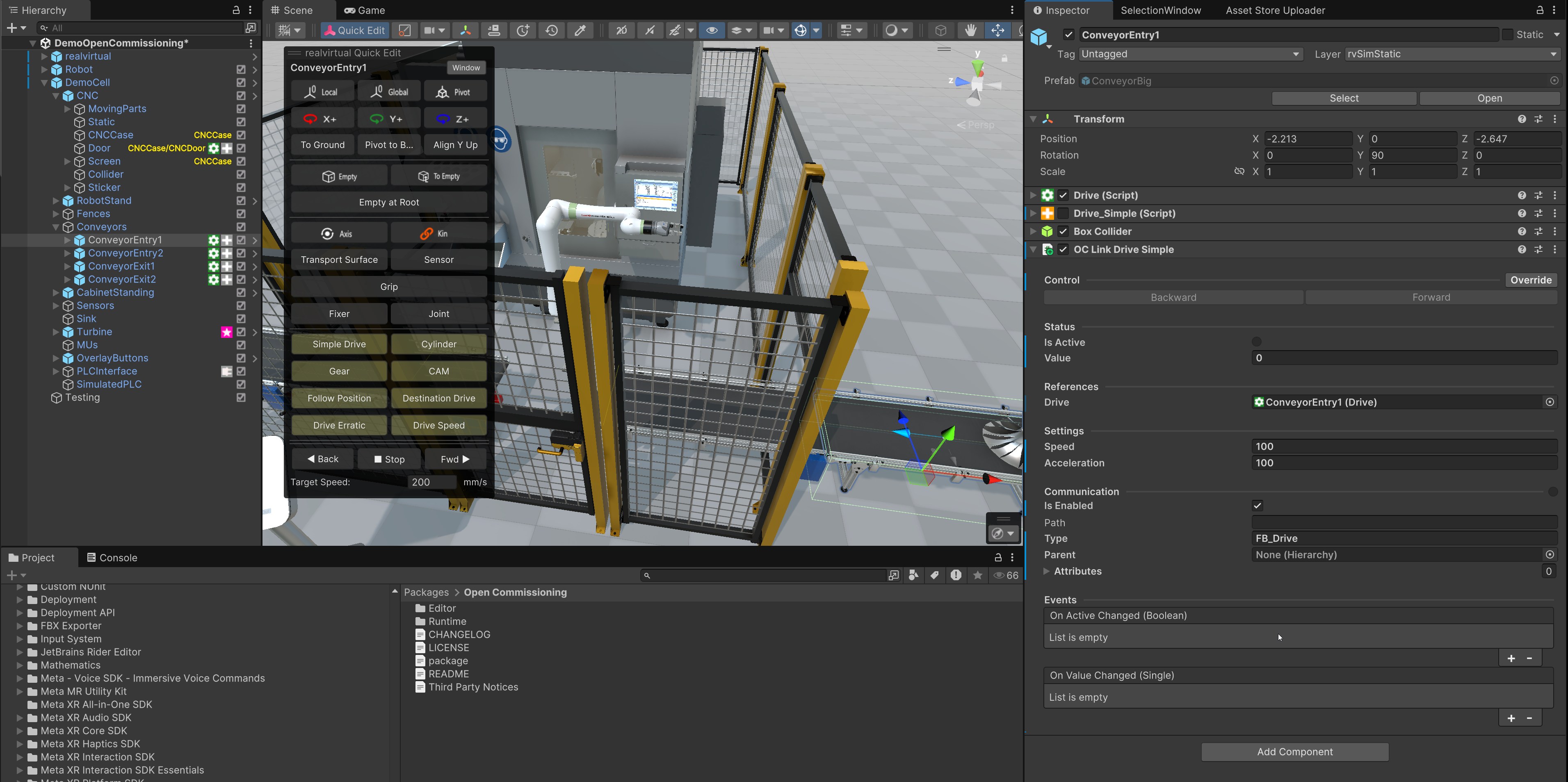
<figure><img src="/files/Ca0Wcbdo8Obe6c4H0MMD" alt=""><figcaption><p>OC Link Drive Simple inspector showing Control, Status, References, Settings, Communication, and Events sections</p></figcaption></figure>

## Component Properties

All OC Link components share common properties organized into collapsible sections:

**Control Section**

* **Forward** (button) - Manually trigger forward motion for testing
* **Backward** (button) - Manually trigger backward motion for testing
* Component-specific controls vary by link type

**Status Section**

* **Connection Status** (indicator) - Shows OpenCommissioning connection state (green = connected, red = disconnected)
* **Current State** (text) - Displays current operational state
* Component-specific status fields

**References Section**

* **Linked Component** (reference) - Automatically detected realvirtual component on same GameObject
* Can be manually assigned if component is on different GameObject

**Settings Section**

* **Communication Name** (string) - Unique identifier for OpenCommissioning shared memory mapping
* **Auto Connect** (boolean) - Automatically establish connection when scene starts
* **Update Rate** (float) - Communication update frequency in milliseconds

**Communication Section**

* **Shared Memory Address** (text) - Current shared memory location (read-only)
* **Last Update Time** (text) - Timestamp of most recent communication (read-only)
* **Error Count** (number) - Number of communication errors since connection (read-only)

**Events Section**

* **On Connected** (UnityEvent) - Triggered when OpenCommissioning connection established
* **On Disconnected** (UnityEvent) - Triggered when connection lost
* Component-specific events for state changes

## See Also

* [S7 Interface](/components-and-scripts/interfaces/s7-tcp.md) - Siemens S7 PLC communication
* [OPC UA Interface](https://github.com/game4automation/doc/blob/doc/components-and-scripts/interfaces/opcua-pro.md) - OPC UA industrial protocol
* [Drive Components](/components-and-scripts/motion/drive.md) - realvirtual drive system
* [Sensor Component](https://github.com/game4automation/doc/blob/doc/components-and-scripts/scene-interaction/sensor.md) - Proximity and detection sensors
* [Grip Component](https://github.com/game4automation/doc/blob/doc/components-and-scripts/scene-interaction/grip.md) - Automated gripping system


---

# Agent Instructions: Querying This Documentation

If you need additional information that is not directly available in this page, you can query the documentation dynamically by asking a question.

Perform an HTTP GET request on the current page URL with the `ask` query parameter:

```
GET https://doc.realvirtual.io/components-and-scripts/interfaces/opencommissioning.md?ask=<question>
```

The question should be specific, self-contained, and written in natural language.
The response will contain a direct answer to the question and relevant excerpts and sources from the documentation.

Use this mechanism when the answer is not explicitly present in the current page, you need clarification or additional context, or you want to retrieve related documentation sections.