githubEdit

Bosch Rexroth ctrlX (Pro)

Bosch Rexroth ctrlX CORE interface with Data Layer bridge integration (Pro)

circle-exclamation
circle-info

This interface requires the REALVIRTUAL_JSON compiler define. See Newtonsoft JSON for setup instructions.

Overview

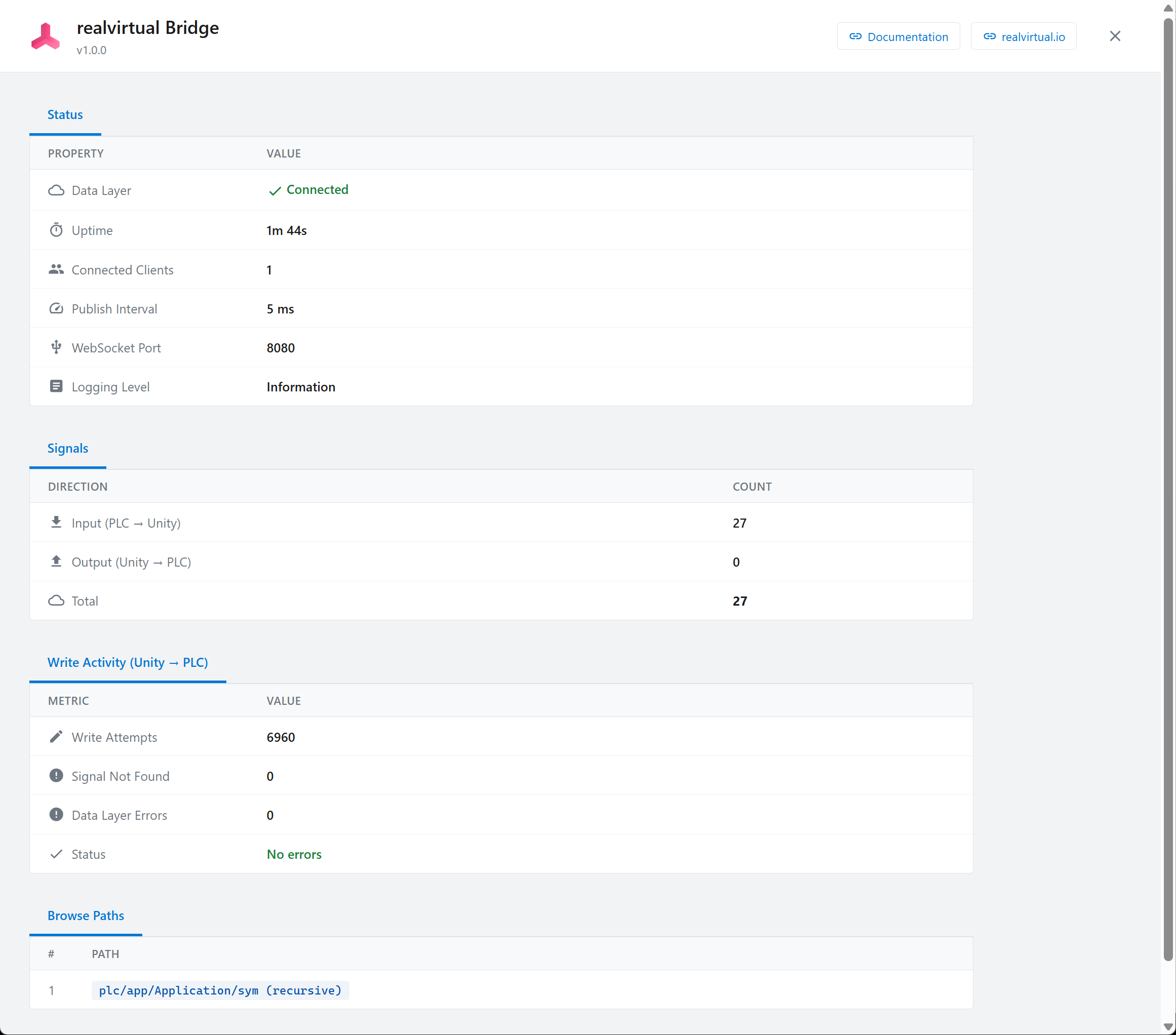
The ctrlX Interface connects realvirtual directly to a Bosch Rexroth ctrlX CORE controller. It uses the realvirtual WebSocket Bridge — a .NET 8 snap application running on the ctrlX device — to exchange PLC signals in real time via the ctrlX Data Layer.

Communication uses the high-performance WebSocket Realtime Interface v2 protocol, enabling cyclic signal exchange at millisecond intervals. The ctrlX Interface extends the WebSocket Realtime Interface with ctrlX-specific features: REST API authentication, device status monitoring, remote bridge configuration, Data Layer settings, and diagnostics — all from the Unity Inspector.

Key capabilities:

  • High-speed signal exchange via WebSocket with configurable publish intervals down to 5 ms

  • One-click signal import from ctrlX Data Layer with automatic signal discovery

  • REST API integration for device info, bridge status, and diagnostics

  • Remote bridge configuration (publish interval, browse paths, logging level)

  • Data Layer settings (min publish/sample intervals)

  • SSL/TLS support for secure connections through the ctrlX reverse proxy

Architecture

 Unity (realvirtual)                          ctrlX CORE
┌─────────────────────┐          ┌──────────────────────────────┐
│                     │          │                              │
│   ctrlX Interface ──┼── WebSocket v2 ──▶ WebSocket Bridge    │
│                     │          │               │              │
│                  ───┼── REST API ─────▶ ctrlX Data Layer     │
│                     │          │               │              │
│                     │          │          PLC Runtime         │
│                     │          │                              │
└─────────────────────┘          └──────────────────────────────┘

The ctrlX Interface communicates with the ctrlX CORE through two channels:

  • WebSocket v2 — High-speed cyclic signal exchange using the WebSocket Realtime Interface v2 protocol. See that page for the full wire format specification.

  • REST API — Authentication, device info, bridge configuration, Data Layer settings, and diagnostics.

realvirtual WebSocket Bridge

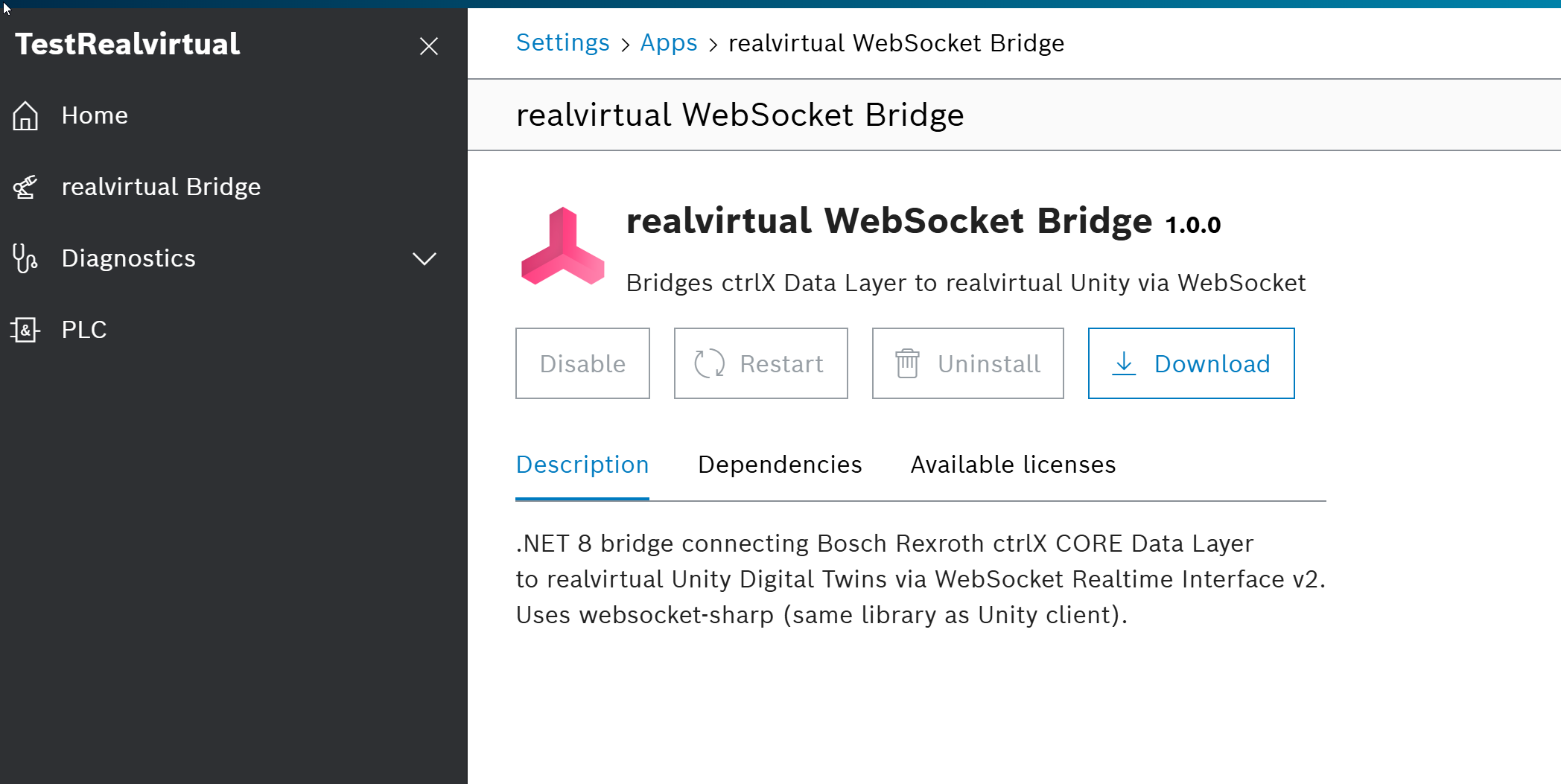
The realvirtual WebSocket Bridge is a .NET 8 snap application that runs on the ctrlX CORE device. It bridges the ctrlX Data Layer to realvirtual Unity Digital Twins via the WebSocket Realtime Interface v2 protocol.

realvirtual WebSocket Bridge installed on a ctrlX CORE device

The bridge:

  • Subscribes to ctrlX Data Layer nodes and publishes their values over WebSocket

  • Receives signal updates from Unity and writes them back to the Data Layer

  • Supports configurable browse paths, publish intervals, and logging levels

  • Can be configured remotely from the Unity Inspector

circle-info

The realvirtual WebSocket Bridge snap is available from realvirtual on demand. Contact realvirtualarrow-up-right to obtain the bridge application for your ctrlX CORE device.

Setup

Prerequisites

  1. A ctrlX CORE (physical or virtual) running ctrlX OS

  2. The realvirtual WebSocket Bridge snap installed on the ctrlX device (available from realvirtual on demand)

  3. Network connectivity between your PC and the ctrlX device

Adding the Interface

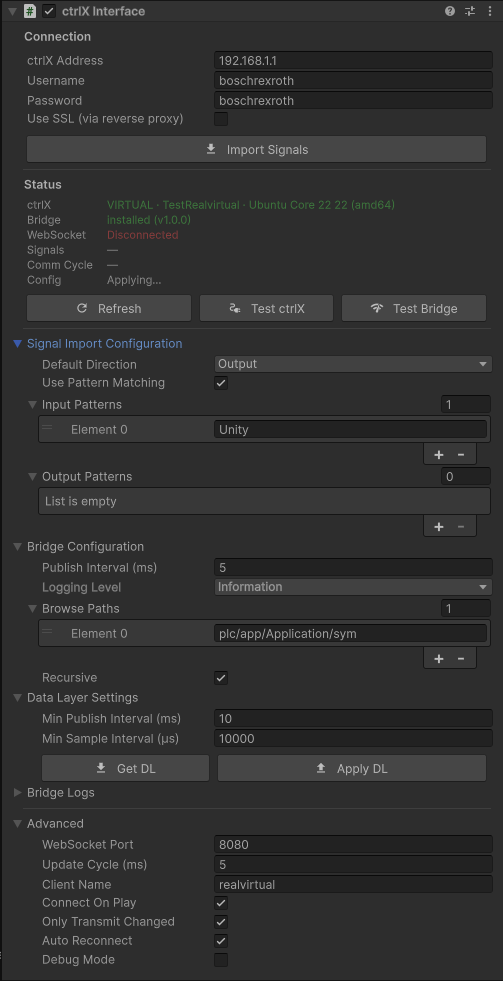
  1. In Unity, go to the menu realvirtual > Interfaces > ctrlX Interface to add the component

  2. Enter the ctrlX Address (IP address of your ctrlX device)

  3. Set Username and Password (default: boschrexroth / boschrexroth)

  4. Click Refresh to verify the connection and see device info

ctrlX Interface Inspector

Importing Signals

  1. Make sure the ctrlX device is reachable and the bridge snap is running

  2. Configure Browse Paths to point to your PLC symbols (e.g. plc/app/Application/sym)

  3. Click Import Signals in the Connection section

  4. The interface connects to the bridge, discovers all signals, and creates local PLC signal objects as children

Quick Start

  1. Add the ctrlX Interface to your scene

  2. Enter ctrlX address and credentials

  3. Click Refresh to verify connectivity

  4. Configure browse paths for your PLC program

  5. Click Import Signals to create signal objects

  6. Press Play — signals exchange automatically

Properties

Connection

Property
Description

ctrlX Address

IP address of the ctrlX CORE device (e.g. 192.168.1.1)

Username

Login username for ctrlX REST API (default: boschrexroth)

Password

Login password for ctrlX REST API (default: boschrexroth)

Use SSL

Enable for wss:// connections through the ctrlX reverse proxy. When enabled, port switches to 443 and path is set automatically

Status

Property
Description

ctrlX

Device info: operating mode, hostname, OS version, architecture

Bridge

Installed bridge snap version and status

WebSocket

Current WebSocket connection state (Connected / Disconnected)

Signals

Number of input and output signals

Comm Cycle

Actual communication cycle time in milliseconds

Config

Last configuration operation result

Buttons:

  • Refresh — Fetches device info and bridge status from ctrlX via REST API

  • Test ctrlX — Tests REST connectivity by authenticating and reporting the result

  • Test Bridge — Tests WebSocket connectivity to the bridge application

Signal Import Configuration

Property
Description

Default Direction

Direction for imported signals when no pattern matches (Input or Output)

Use Pattern Matching

Enable name-based direction detection using the patterns below

Input Patterns

Name substrings that identify signals Unity writes to the PLC (e.g. "Unity")

Output Patterns

Name substrings that identify signals the PLC writes to Unity

Bridge Configuration

Property
Description

Publish Interval (ms)

How often the bridge publishes signal updates over WebSocket (default: 5 ms)

Logging Level

Bridge log verbosity: Debug, Information, Warning, or Error

Browse Paths

Data Layer path prefixes for signal auto-discovery (e.g. plc/app/Application/sym)

Recursive

Browse sub-folders recursively when discovering signals

Changes to bridge configuration are tracked and auto-applied after a short delay.

Data Layer Settings

Property
Description

Min Publish Interval (ms)

ctrlX Data Layer global minimum publish interval in milliseconds (default: 10)

Min Sample Interval (µs)

ctrlX Data Layer global minimum sample interval in microseconds (default: 10000)

Buttons:

  • Get DL — Reads current Data Layer subscription settings from ctrlX

  • Apply DL — Writes the configured values to ctrlX Data Layer settings

Bridge Logs

Property
Description

Log Count

Number of log entries to fetch from ctrlX diagnostics

Bridge Logs Only

Filter to show only bridge snap log entries

Forward to Console

Write each fetched log entry to the Unity console

Buttons:

  • Fetch Logs — Retrieves recent log entries from ctrlX diagnostics

  • List Packages — Lists all installed snaps on the ctrlX device

Advanced

Property
Description

WebSocket Port

TCP port for WebSocket communication (default: 8080, auto-set to 443 when SSL is enabled)

Update Cycle (ms)

Communication thread update interval in milliseconds

Client Name

Identification name sent during WebSocket handshake

Connect On Play

Automatically connect when entering play mode

Only Transmit Changed

Only send signals whose values changed since the last cycle

Auto Reconnect

Automatically reconnect on connection loss

Debug Mode

Enable detailed logging for troubleshooting

SSL / Reverse Proxy

When Use SSL is enabled:

  • The port is automatically set to 443

  • The WebSocket path is set to /ctrlx-rv-bridge/ws for routing through the ctrlX reverse proxy

  • All REST API calls use HTTPS

  • Self-signed certificates are accepted (common for ctrlX devices on local networks)

When SSL is disabled, the interface connects directly to the bridge on port 8080 without encryption.

Troubleshooting

"Refresh" shows no device info:

  • Verify the ctrlX address is correct and the device is reachable (ping)

  • Check username and password — default is boschrexroth / boschrexroth

  • Use Test ctrlX to verify REST API connectivity

Bridge shows "not found":

  • Install the realvirtual WebSocket Bridge snap on the ctrlX device

  • Check that the snap is in active state

WebSocket stays "Disconnected" during play:

  • Verify the bridge snap is running on the ctrlX device

  • Check WebSocket Port matches the bridge configuration (default: 8080)

  • If using SSL, ensure port 443 is accessible and the bridge is behind the ctrlX reverse proxy

  • Enable Debug Mode for detailed connection logging

Signals not importing:

  • Check that Browse Paths point to valid Data Layer nodes (e.g. plc/app/Application/sym)

  • Enable Recursive to discover signals in sub-folders

  • Verify the PLC application is loaded and running on the ctrlX

Wrong signal directions after import:

  • Configure Input Patterns and Output Patterns to match your naming convention

  • Or set the Default Direction to match the majority of your signals

See Also

Last updated