> For the complete documentation index, see [llms.txt](https://doc.realvirtual.io/llms.txt). Markdown versions of documentation pages are available by appending `.md` to page URLs; this page is available as [Markdown](https://doc.realvirtual.io/extensions/mcp-server/installation-setup.md).
# Installation & Setup
## Requirements
* **Unity 6000.0+** (Unity 6)
* **Newtonsoft JSON** (`com.unity.nuget.newtonsoft-json`) — installed automatically as dependency
* **git** must be installed and available in PATH — [git-scm.com](https://git-scm.com)
## Installation
### Via Unity Asset Store (Recommended)
Install directly from the Unity Asset Store:
[**realvirtual MCP Server on Unity Asset Store**](https://assetstore.unity.com/preview/361912/1260684)
### Via Unity Package Manager (Git URL)
1. Open Unity **Window > Package Manager**
2. Click **+ > Add package from git URL**
3. Enter: `https://github.com/game4automation/io.realvirtual.mcp.git`
Both methods install the package with all dependencies automatically.
## Setup
### Automated Setup (Recommended)
After installing the package:
1. A **brain icon** appears in the Unity Scene View toolbar — this is the MCP status indicator
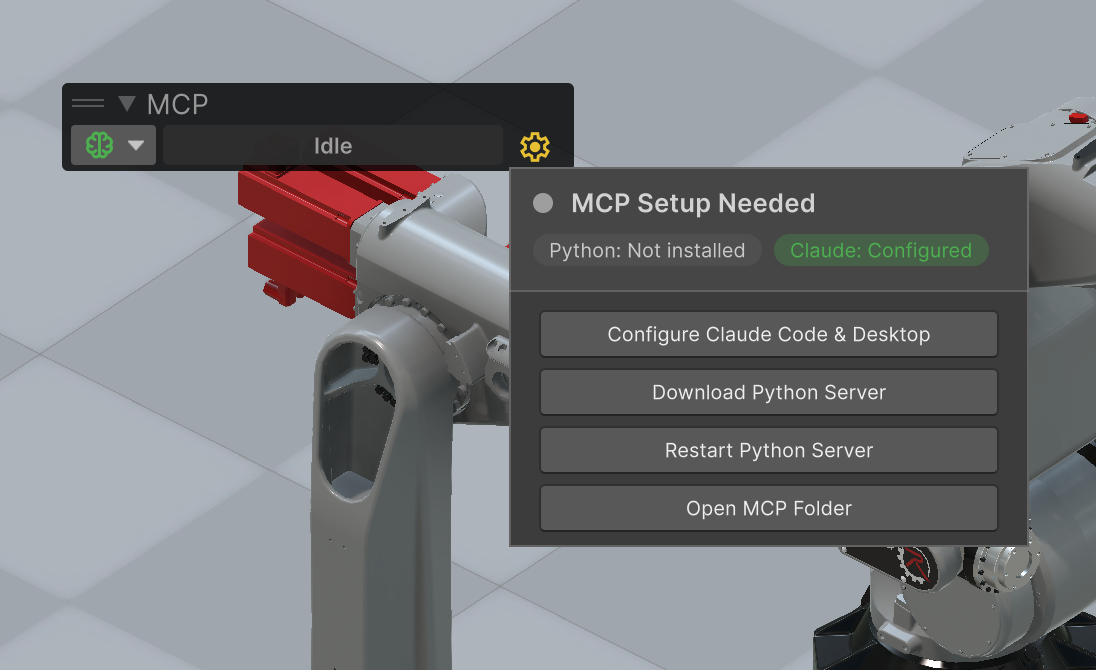
2. Click the **gear icon** next to it to open the setup popup
3. Click **Download Python Server** — this runs `git clone` to download the Python server into `Assets/StreamingAssets/realvirtual-MCP/`
4. Click **Configure Claude Code & Desktop** — this writes the MCP configuration to Claude Desktop and/or Claude Code
Setup popup showing initial state with Python server not yet installed
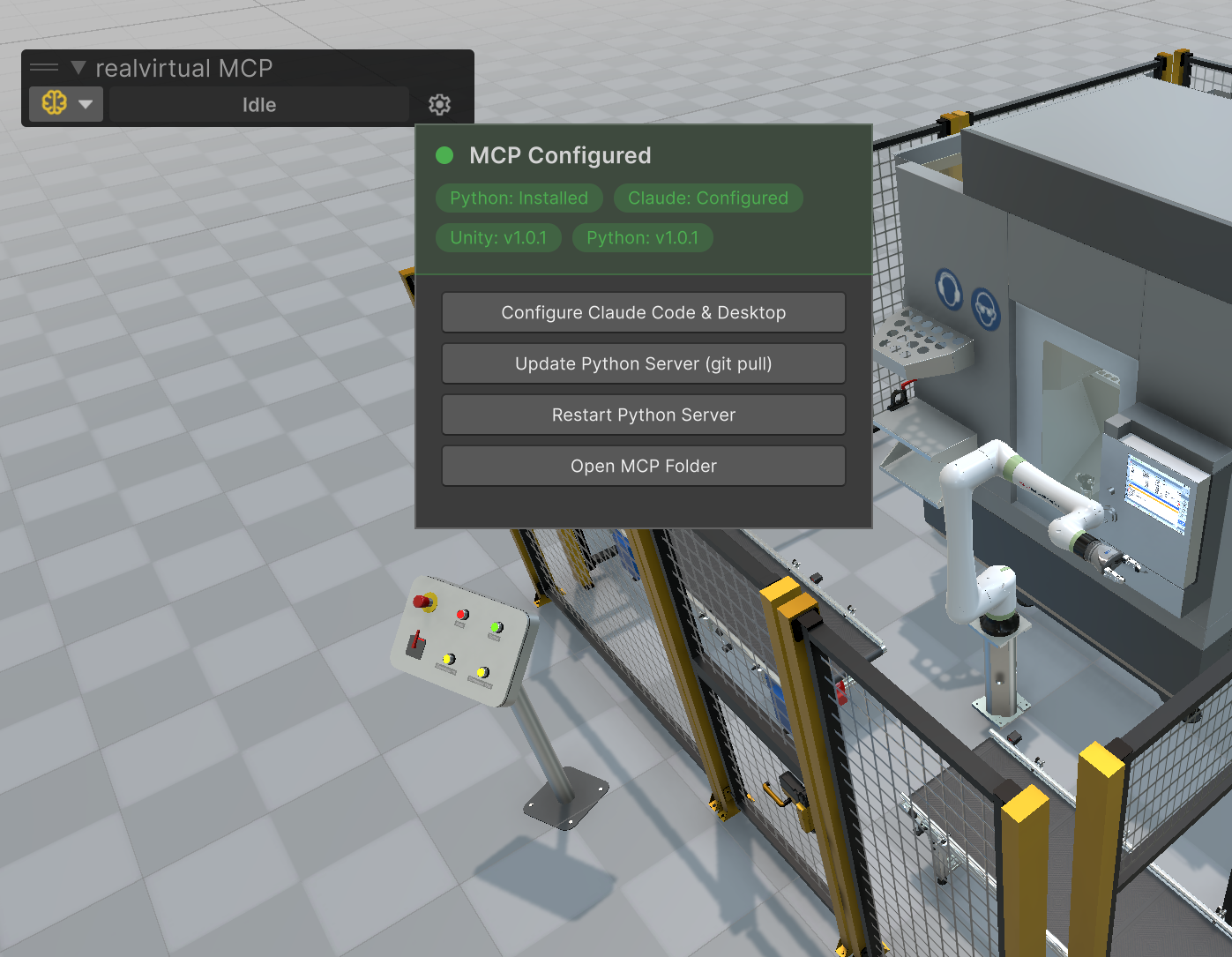
Once configured, the popup shows green status indicators:
Setup popup after successful configuration
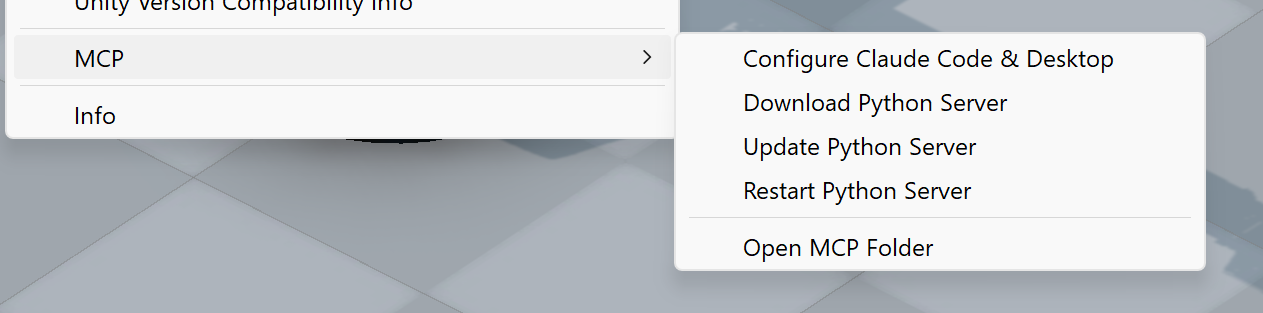
You can also access setup via the Unity menu: **Tools > realvirtual > MCP**
MCP menu in Unity Editor
### Manual Setup
If you prefer to set up manually:
1. Clone the Python server repository:
```bash
cd /Assets/StreamingAssets
git clone https://github.com/game4automation/realvirtual-MCP.git
```
2. Configure your MCP client manually. For Claude Code, add to your MCP settings:
```json
{
"mcpServers": {
"realvirtual-unity": {
"command": "/Assets/StreamingAssets/realvirtual-MCP/python/python.exe",
"args": ["/Assets/StreamingAssets/realvirtual-MCP/unity_mcp_server.py"]
}
}
}
```
## Command Line Options
The Python server takes a few optional flags. The one worth knowing about:
| Flag | Effect |
| ---------------- | ----------------------------------------------------------------------------------------------------- |
| `--webviewer` | Starts the historic `web_*` WebSocket proxy on port 18712. **Off by default** since MCP server 1.1.2. |
| `--no-webviewer` | Accepted and ignored — it was the way to switch the proxy off while it was still on by default. |
The `web_*` browser tools of realvirtual WEB belong to **realvirtual CONNECT** (`http://localhost:5100/mcp`), which serves them behind its community registration. The proxy in this server offered the same tool names without any registration check, so it no longer starts on its own. The Unity Editor tools of this server are unaffected and need no registration.
## Updating
{% hint style="warning" %}
An already installed Python server does **not** update itself — the downloader skips a directory that is already there. After updating the Unity package, click **Update Python Server (git pull)** once, or the server keeps running the version you downloaded first.
{% endhint %}
### Python Server
Click **Update Python Server (git pull)** in the toolbar popup, or run manually:
```bash
cd /Assets/StreamingAssets/realvirtual-MCP
git pull
```
### Unity Package
1. Open **Window > Package Manager**
2. Select **realvirtual MCP Server**
3. Click **Update** (if available)
If no update button appears, remove the lock entry for `io.realvirtual.mcp` from `Packages/packages-lock.json` and reopen Unity.
---
# Agent Instructions
This documentation is published with GitBook. GitBook is the documentation platform designed so that both humans and AI agents can read, navigate, and reason over technical content effectively. Learn more at gitbook.com.
## Querying This Documentation
If you need additional information that is not directly available in this page, you can query the documentation by asking a question.
Perform an HTTP GET request on the following URL with the `ask` and `goal` query parameters:
```
GET https://doc.realvirtual.io/extensions/mcp-server/installation-setup.md?ask=&goal=
```
`ask` is the immediate question: it should be specific, self-contained, and written in natural language.
`goal` is what the user is ultimately trying to achieve, the reason they need the answer. Sharing it helps GitBook give you a better, more relevant answer. A goal is most helpful when it describes the outcome the user wants rather than restating the question. For example, with `ask=how do I create an API token`, a goal like `automate deployments from our CI pipeline` lets GitBook tailor the answer to that use case.
The response will contain a direct answer to the question and relevant excerpts and sources from the documentation.
Use this mechanism when the answer is not explicitly present in the current page, you need clarification or additional context, or you want to retrieve related documentation sections.