Pre-Play Validation

The Pre-Play Validation system automatically detects and resolves common configuration issues before simulation startup, reducing debugging time and ensuring reliable automation system behavior.

Overview

Pre-Play Validation proactively identifies potential problems in your scene configuration and either automatically fixes them or provides clear guidance for resolution. This validation system catches issues early in the development process, preventing runtime failures and unexpected behavior during virtual commissioning.

Key benefits include:

  • Automated Problem Detection: Identifies configuration conflicts before they cause runtime issues

  • Intelligent Auto-Fixes: Automatically resolves common problems like conflicting component settings

  • Clear Diagnostic Messages: Provides specific, actionable feedback for manual fixes

  • Development Workflow Integration: Runs seamlessly during normal development activities

  • Reduced Debugging Time: Catches issues before they become complex runtime problems

💡 Hint Enable validation early in your project development to establish good configuration practices and catch issues as they develop rather than during final testing.

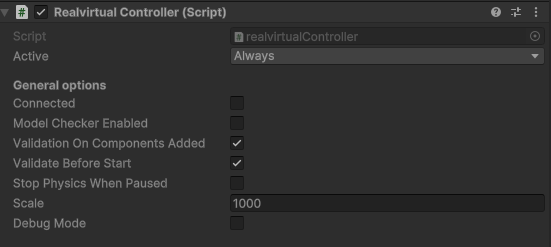
Enable Pre-Play Validation in RealvirtualController settings

Quick Start

Enable Validation (1 minute)

  1. Locate RealvirtualController in your scene (usually on a "Controller" GameObject)

  2. Check Validation Settings in the Inspector:

    • Validate Before Start: ✅ Enable for pre-simulation checks

    • Validation On Components Added: ✅ Enable for real-time component validation

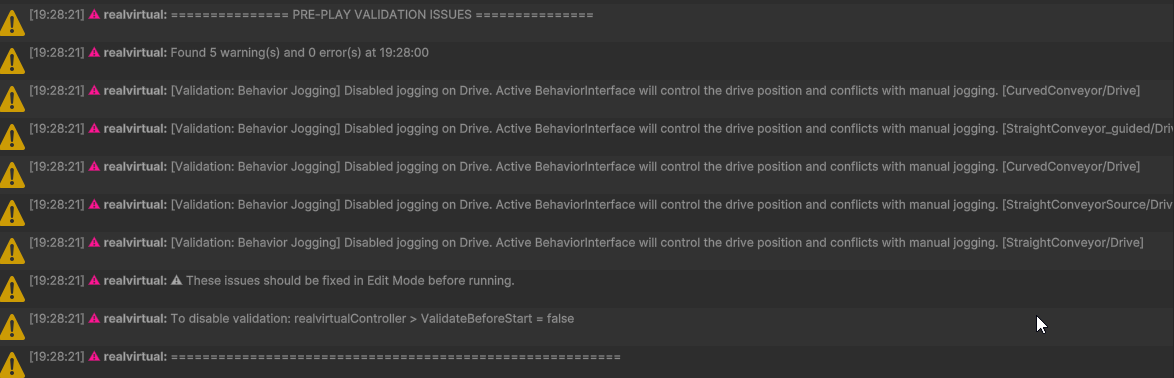
  3. Test the System: Start Play mode and check Unity Console for validation messages

Understanding Validation Output

Validation messages appear in Unity Console with this format:

Configuration Options

RealvirtualController Settings

Validate Before Start Runs comprehensive scene validation when entering Play mode.

  • Type: Boolean

  • Default: true

  • Use case: Catch configuration issues before simulation starts

  • Performance: Minimal impact on startup time

Validation On Components Added Validates components immediately when added in Editor mode.

  • Type: Boolean

  • Default: true

  • Use case: Prevent invalid configurations during scene building

  • Performance: Real-time validation with no runtime impact

Development Workflow Integration

Recommended Settings for Different Phases:

Early Development: Both validations enabled

  • Helps establish proper configuration patterns

  • Catches issues as components are added

Production/Testing: Pre-play validation enabled, component validation optional

  • Ensures scene integrity before critical testing

  • Reduces validation interruptions during rapid development

Final Release: Validation can be disabled for performance

  • Remove validation overhead in final builds

  • All configuration issues should be resolved by this stage
Validation warnings displayed in Unity Console

Best Practice: Keep both validations enabled during development. The system is designed to be non-intrusive while providing valuable feedback for scene configuration quality.

Validation Rules Reference

The validation system includes specialized rules that target common configuration problems in industrial automation setups.

Control System Validation

BehaviorInterface Jogging Conflict Resolution

Problem Detected: Drive components with both BehaviorInterface control and manual jogging enabled

Why This Matters:

  • BehaviorInterface components provide programmatic drive control for automation sequences

  • Manual jogging controls (JogForward/JogBackward) are intended for manual testing and debugging

  • Having both active creates conflicting control signals and unpredictable behavior

Automatic Resolution:

  • Disables JogForward and JogBackward properties on affected Drive components

  • Preserves BehaviorInterface control for proper automation operation

  • Maintains drive functionality while eliminating control conflicts

Example Scenario:

Console Message:

Multiple BehaviorInterface Prevention

Problem Detected: GameObjects with multiple active BehaviorInterface components

Why This Matters:

  • Each GameObject should have only one active control interface

  • Multiple interfaces create ambiguous control authority

  • Can cause timing conflicts and synchronization issues

Automatic Resolution:

  • Keeps the first active BehaviorInterface component

  • Disables additional BehaviorInterface components

  • Preserves the primary control interface functionality

Example Scenario:

Motion System Validation

Single Drive Component Enforcement

Problem Detected: Multiple Drive components on the same GameObject

Why This Matters:

  • Unity GameObjects support only one primary motion controller

  • Multiple Drive components create conflicting transform updates

  • Can cause jittery movement, position fighting, or complete motion failure

Immediate Resolution:

  • Removes duplicate Drive components as soon as they're added

  • Preserves the original Drive component configuration

  • Triggers immediately during component addition (not just pre-play)

Prevention Strategy:

Transport Surface Hierarchy Validation

Problem Detected: Improper Drive-TransportSurface hierarchy configurations

Critical Physics Requirements:

  • TransportSurface components need Drive control for proper operation

  • Unity physics constraints prevent certain Drive-TransportSurface arrangements

  • Missing Drive references cause non-functional conveyor systems

Validation Logic:

✅ Valid Configurations:

  • TransportSurface with explicit DriveReference assigned

  • TransportSurface with exactly one Drive in parent hierarchy

  • TransportSurface as child of Drive GameObject

❌ Invalid Configurations:

  • TransportSurface without Drive and no DriveReference

  • TransportSurface with multiple Drives above it in hierarchy

  • Drive component positioned above TransportSurface violating physics

Practical Examples:

Console Messages:

Validation Triggers

Pre-Play Validation

Automatically runs when entering Play mode (if enabled):

  • BehaviorInterface Jogging Conflicts: Drive components with conflicting control methods

  • Multiple BehaviorInterface Detection: GameObjects with multiple active interfaces

  • TransportSurface Hierarchy: Drive-TransportSurface relationship validation

Component Addition Validation

Runs immediately when components are added in Editor:

  • Multiple Drive Prevention: Blocks duplicate Drive components on same GameObject

Practical Usage Examples

Common Development Scenarios

Scenario 1: Building a Conveyor System

Step-by-step with Validation Feedback:

  1. Create Conveyor GameObject:

  2. Add Drive Component:

  3. Add Second Drive (Mistake):

  4. Add TransportSurface:

Scenario 2: Robot Arm with Automation Control

Development Progression:

  1. Initial Setup:

  2. Add Automation Control:

  3. Final Configuration:

Manual Validation Control

Runtime Control

Editor Integration

Custom Validation Rules

Extending the Validation System

The validation system supports custom rules for project-specific requirements:

Troubleshooting

Validation Not Running

Symptoms: No validation messages appear in Unity Console when starting Play mode or adding components

Diagnostic Steps:

  1. Verify RealvirtualController Configuration:

  2. Check Console Filter Settings:

    • Ensure Unity Console shows "Info" level messages

    • Look for "[Validation]" prefix in console messages

    • Check Console collapse setting doesn't hide validation messages

  3. Verify Component Targets:

    • Validation only runs on components with active validation rules

    • Test with known validation scenarios (add second Drive component)

Common Solutions:

  • Enable "Validate Before Start" in RealvirtualController Inspector

  • Ensure RealvirtualController GameObject is active in scene

  • Check that validation target components exist in scene

Understanding Validation Messages

Message Format Analysis:

Example Interpretation:

Validation Conflicts and False Positives

When Validation Seems Wrong:

  1. Understand the Rule Logic:

    • Review rule documentation to understand why it triggered

    • Consider if your configuration follows realvirtual best practices

    • Check if special use case requires different approach

  2. Legitimate Special Cases:

  3. Configuration Review:

    • Verify component hierarchy matches realvirtual patterns

    • Check component references and dependencies

    • Consider refactoring to standard configurations

Performance and Integration Issues

Editor Performance Impact:

Symptoms: Noticeable delays when adding components or starting Play mode

Optimization Approaches:

  • Disable component addition validation during rapid prototyping

  • Use pre-play validation only for final testing phases

  • Consider scene complexity and number of validation targets

Multi-Scene Validation Issues:

Symptoms: Validation inconsistencies across different scenes

Solutions:

  • Ensure each scene has its own RealvirtualController

  • Validate scene-specific component configurations

  • Use prefabs for consistent validation setups across scenes

See Also


© 2025 realvirtual GmbH https://realvirtual.io - All rights reserved. No part of this publication may be reproduced, distributed, or transmitted in any form or by any means, including printing, saving, photocopying, recording, or other electronic or mechanical methods, without the prior written permission of the publisher.

Last updated