> For the complete documentation index, see [llms.txt](https://doc.realvirtual.io/llms.txt). Markdown versions of documentation pages are available by appending `.md` to page URLs; this page is available as [Markdown](https://doc.realvirtual.io/components-and-scripts/scene-interaction/scene-selectables-pro.md).
# Scene Selectables (Pro)
Interactive 3D object selection system with multi-layer highlighting, real-time signal monitoring, tooltips, and detailed property inspection for virtual commissioning and training scenarios.
The Scene Selection system provides interactive runtime object selection with sophisticated visual feedback, allowing operators to inspect components, view live signal states, and interact with simulation elements during virtual commissioning, training, and debugging scenarios.
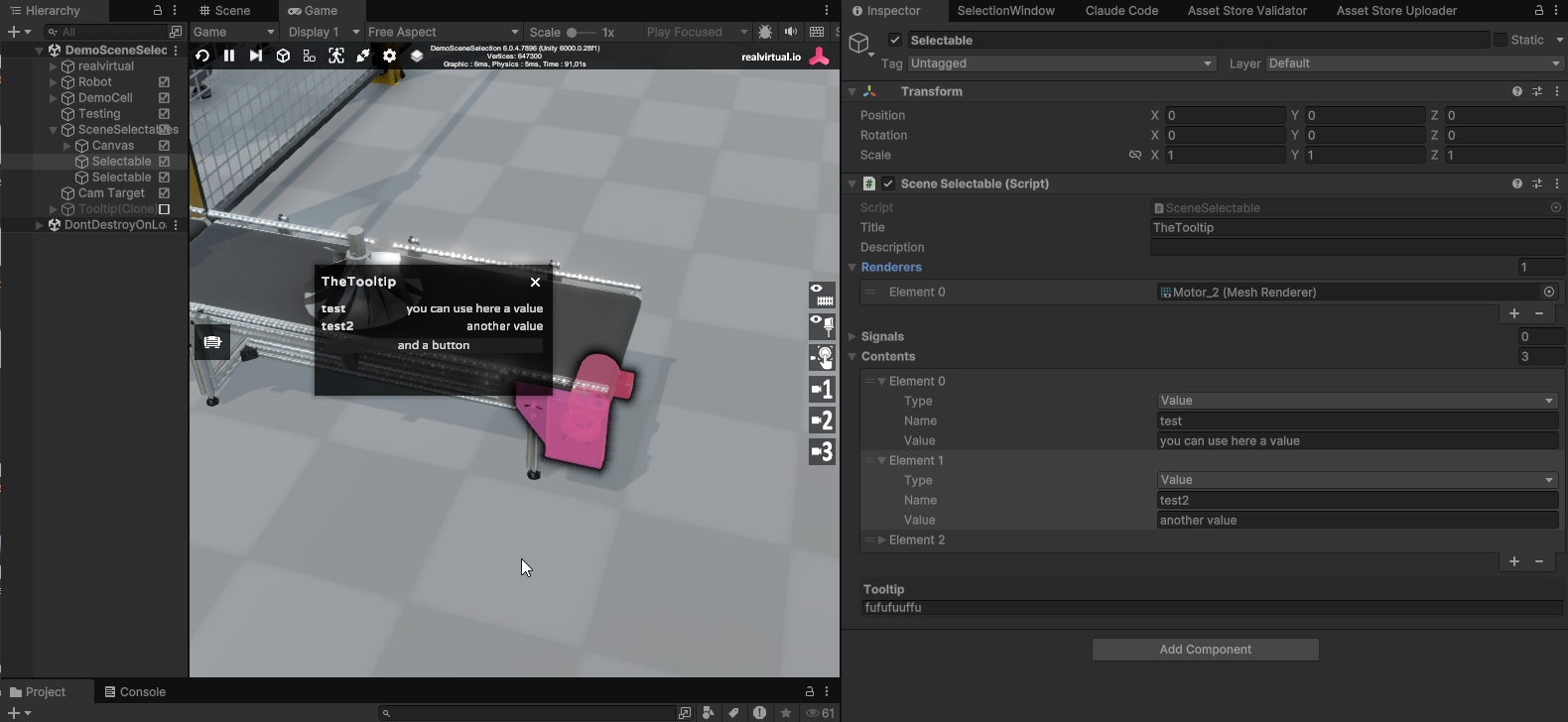
Scene Selection with modern tooltip display and interactive signal window
## Overview
Scene Selection transforms static 3D models into interactive elements that users can hover over, click, and inspect during runtime. The system provides multi-layer visual feedback with separate highlighting for hover effects, active states, selections, and change indicators. Each selectable object can display tooltips on hover and detailed information windows when clicked, including live signal states that can be toggled directly from the interface.
Key capabilities include:
* **Multi-layer highlighting system** with four independent visual states (Active, Hover, Selected, Changed)
* **Interactive tooltips** that appear on hover with customizable content
* **Detailed selection windows** showing properties, descriptions, and live signal states
* **Signal monitoring and control** with toggle switches for real-time manipulation
* **Change tracking** that highlights objects when their signal states differ from initial values
* **Dynamic content system** for adding runtime values and clickable links
* **Multi-renderer grouping** to treat complex models as single selectable units
* **Raycast-based interaction** with automatic UI avoidance
The system integrates seamlessly with realvirtual's signal system, allowing you to monitor and control PLCInputBool, PLCOutputBool, and other signal types directly from the selection interface. This makes it invaluable for debugging automation logic, training operators on equipment functions, and creating interactive maintenance procedures.
## Setup and Configuration
### Adding Scene Selection to Your Scene
To implement Scene Selection in your project:
1. **Add the prefab**: Drag the `SceneSelectables` prefab from `Assets/realvirtual/UIPrefabs/` into your scene hierarchy
2. **Configure the toolbar button**: The system automatically adds a toolbar button using the icon specified in the SceneSelectionManager
3. **Set up highlighting managers**: The prefab comes pre-configured with four highlighting managers that are automatically detected:
* **Highlight 1**: Active state highlighting
* **Highlight 2**: Hover effect highlighting
* **Highlight 3**: Changed state highlighting
* **Highlight 4**: Selected state highlighting
### Creating Selectable Objects
You can create selectable objects in two ways:
**Method 1: Using the Add Selectable Button**
1. Select the SceneSelectables GameObject in the hierarchy
2. Click **Add Selectable** in the Inspector
3. A new SceneSelectable child object is created automatically
4. Configure the selectable's properties in the Inspector
**Method 2: Manual Creation**
1. Create an empty GameObject as a child of SceneSelectables
2. Add the SceneSelectable component
3. Configure renderers, signals, and content
## SceneSelectionManager Properties
The SceneSelectionManager orchestrates all selection interactions and visual feedback:
### Selection Managers
**Active** (AbstractSelectionManager) controls the highlighting for objects in their default active state. This manager applies visual feedback to all selectable objects when the selection system is enabled, providing a base layer of highlighting that indicates which objects are interactive.
**Hover** (AbstractSelectionManager) manages the hover effect when the mouse cursor moves over a selectable object. This provides immediate visual feedback to users, indicating which object will be selected if clicked. The hover highlighting is automatically removed when the cursor moves away.
**Selected** (AbstractSelectionManager) handles persistent highlighting for objects that have been clicked and selected. This highlighting remains active until another object is selected or the selection is cleared, providing clear visual indication of the currently inspected object.
**Changed** (AbstractSelectionManager) highlights objects whose signal states have changed from their initial values. This is particularly useful for debugging and training scenarios, as it immediately shows which components have been manipulated or have changed state during simulation.
### UI Configuration
**Icon** (Sprite) defines the toolbar button icon for enabling/disabling the selection system. This icon appears in both the on and off states of the toolbar button, providing a consistent visual identifier for the selection tool.
**Window** (GameObject) references the selection window prefab that displays detailed information when an object is selected. This window contains the title, description, signal toggles, and any dynamic content associated with the selected object.
**Title** (TextMeshProUGUI) points to the text component that displays the selected object's title in the selection window header. This is automatically updated when an object is selected.
**Description** (GameObject) contains the panel for displaying detailed descriptions. The panel is automatically shown or hidden based on whether the selected object has a description defined.
**Tooltip** (GameObject) references the tooltip prefab that appears on hover. The tooltip automatically sizes itself to fit the content and follows the mouse cursor position.
### UI Prefabs
**Value Prefab** (GameObject) defines the template for displaying property values in the selection window. This prefab is instantiated for each value-type content item, showing a label and value pair.
**Button Prefab** (GameObject) provides the template for creating interactive link buttons in the selection window. These buttons can open URLs, documentation, or trigger other actions when clicked.
## SceneSelectable Properties
### Basic Information
**Title** (string) sets the header text displayed in the selection window. This should be a clear, concise name that identifies the component or system being selected. For example: "Conveyor Motor M1" or "Safety Door Sensor".
**Description** (string) provides detailed information about the selected object. This text appears in an expandable panel within the selection window and can include operational details, specifications, or usage instructions. The description panel automatically hides if no text is provided.
**Tooltip** (string) defines the hover text that appears when the mouse cursor is over the object. Tooltips are edited through a custom text area in the Inspector and support multi-line content. Use tooltips to provide quick identification or status information without requiring a full selection.
### Visual Configuration
**Renderers** (List) specifies all mesh renderers that belong to this selectable unit. When any renderer in the list is hovered or selected, all renderers are highlighted together. This allows you to group multiple parts of a complex model as a single interactive element. For example, a motor assembly might include the motor body, mounting bracket, and cooling fan as separate renderers that highlight as one unit.
### Signal Integration
**Signals** (List) contains the signals to monitor and control through the selection window. Each signal appears as a toggle switch in the selection window, showing its current state and allowing direct manipulation. The system tracks the initial state of all signals and automatically applies change highlighting when values differ from their starting state. Supported signal types include:
* PLCInputBool for input signals
* PLCOutputBool for output signals
* PLCInputFloat and PLCOutputFloat for analog signals
* Custom signal implementations
### Dynamic Content
**Contents** (List) stores additional information items to display in the selection window. Each content item can be either a value (text display) or a link (clickable button). Content items are added programmatically using the AddStringContent and AddLinkContent methods, allowing you to populate selection windows with runtime data.
## Usage Examples
### Basic Setup Example
Here's how to set up a simple selectable conveyor motor:
```csharp
// Configure in Inspector or via script
SceneSelectable motorSelectable = conveyorMotor.AddComponent();
motorSelectable.SetTitle("Conveyor Drive Motor M1");
motorSelectable.description = "Main drive motor for conveyor section 1\n" +
"Power: 5.5 kW\n" +
"Speed: 0-1450 RPM";
motorSelectable.tooltip = "Motor M1 - Click for details";
// Add the motor's mesh renderers
motorSelectable.renderers.Add(motorBody.GetComponent());
motorSelectable.renderers.Add(motorFan.GetComponent());
// Link motor control signals
motorSelectable.signals.Add(motorRunSignal);
motorSelectable.signals.Add(motorFaultSignal);
motorSelectable.signals.Add(motorSpeedSignal);
```
### Adding Dynamic Content
You can add runtime information to selectables:
```csharp
public class MotorMonitor : MonoBehaviour
{
private SceneSelectable selectable;
private float runtime = 0;
void Start()
{
selectable = GetComponent();
// Add static information
selectable.AddStringContent("Serial Number", "MTR-2024-0156");
selectable.AddStringContent("Installation Date", "2024-03-15");
// Add documentation link
selectable.AddLinkContent("View Manual",
"https://doc.realvirtual.io/motors/m1-series");
// Add maintenance link
selectable.AddLinkContent("Maintenance Schedule",
"https://maintenance.local/motor/M1");
}
void Update()
{
runtime += Time.deltaTime;
// Update runtime display
selectable.ClearContent();
selectable.AddStringContent("Runtime",
$"{runtime:F1} hours");
selectable.AddStringContent("Temperature",
$"{GetMotorTemp():F1}°C");
}
}
```
### Tooltip Configuration
Tooltips are configured through the custom Inspector interface:
1. Select a SceneSelectable object
2. In the Inspector, find the **Tooltip** section at the bottom
3. Enter multi-line tooltip text in the text area
4. The tooltip automatically appears on hover during runtime
Example tooltip content:
```
Safety Door SD-01
Status: Closed
Interlock: Active
Last opened: 10:45 AM
```
### Signal Monitoring Example
Here's how the selection system integrates with signals for a sensor:
```csharp
public class SensorSelectable : MonoBehaviour
{
public PLCInputBool sensorActive;
public PLCInputBool sensorFault;
public PLCOutputBool sensorReset;
void Start()
{
SceneSelectable selectable = GetComponent();
// Add signals for monitoring
selectable.signals.Add(sensorActive);
selectable.signals.Add(sensorFault);
selectable.signals.Add(sensorReset);
// Set descriptive title
selectable.SetTitle($"Proximity Sensor {gameObject.name}");
// Add diagnostic information
selectable.AddStringContent("Type", "Inductive");
selectable.AddStringContent("Range", "8mm");
selectable.AddStringContent("Output", "PNP NO");
}
}
```
## Advanced Features
### Multi-Layer Highlighting System
The four-layer highlighting system provides sophisticated visual feedback:
1. **Base Layer (Active)**: Shows all interactive objects when the selection system is enabled
2. **Hover Layer**: Provides immediate feedback as the cursor moves
3. **Selection Layer**: Persists to show the currently inspected object
4. **Change Layer**: Overlays objects that have been modified
These layers work together to create an intuitive interaction experience. For example, a motor might show:
* Active highlighting (blue outline) indicating it's selectable
* Hover highlighting (yellow glow) when the mouse is over it
* Selection highlighting (green outline) when clicked
* Change highlighting (red pulse) if its signals have been toggled
### Change Tracking
The system automatically tracks signal changes:
```csharp
// Initial state is captured automatically on Start()
// When signals change, the Changed highlight manager activates
// This happens automatically - no code required
// To reset change tracking programmatically:
void ResetChangeTracking()
{
SceneSelectionManager manager = FindObjectOfType();
manager.RefreshActives(); // Re-evaluates all change states
}
```
### Custom Selection Behavior
You can extend selection behavior by responding to selection events:
```csharp
public class CustomSelectable : MonoBehaviour
{
private SceneSelectable selectable;
void Start()
{
selectable = GetComponent();
}
void Update()
{
// Check if this object is currently selected
SceneSelectionManager manager =
GetComponentInParent();
if (manager.selectedSelectable == selectable)
{
// Perform actions while selected
UpdateRealtimeData();
}
}
void UpdateRealtimeData()
{
// Update dynamic content while selected
selectable.ClearContent();
selectable.AddStringContent("Speed",
$"{GetCurrentSpeed():F1} m/s");
selectable.AddStringContent("Position",
$"{transform.position}");
}
}
```
### Programmatic Selection Control
You can control the selection system through code:
```csharp
public class SelectionController : MonoBehaviour
{
private SceneSelectionManager selectionManager;
void Start()
{
selectionManager = FindObjectOfType();
}
public void EnableSelection()
{
selectionManager.Activate();
}
public void DisableSelection()
{
selectionManager.Deactivate();
}
public void ClearSelection()
{
selectionManager.CloseWindow();
}
public void RefreshHighlighting()
{
selectionManager.RefreshActives();
}
}
```
## API Reference
### SceneSelectionManager Methods
**Activate()** enables all child SceneSelectable components and applies initial highlighting. Call this to turn on the selection system programmatically.
**Deactivate()** disables all child SceneSelectable components, removes highlighting, and closes any open windows. Use this to turn off the selection system.
**RefreshActives()** re-evaluates the active/changed state of all selectables based on current signal values. This updates the highlighting to reflect any changes since initialization.
**CloseWindow()** closes the current selection window and clears the selection highlighting. The selected object reference is also cleared.
**AddSelectable()** creates a new SceneSelectable child GameObject. This Editor method provides a quick way to add selectables through the Inspector.
### SceneSelectable Methods
**SetTitle(string title)** sets the display title for the selection window header.
**AddStringContent(string name, string value)** adds a text value display to the selection window. The name appears as a label, and the value is shown alongside it.
**AddLinkContent(string name, string url)** adds a clickable button that opens the specified URL. Use this for documentation links, external resources, or web-based tools.
**ClearContent()** removes all dynamically added content items. Signal displays are not affected.
**Activate()** enables this selectable object, creating the necessary SelectablePart components and applying initial highlighting.
**Deactivate()** disables this selectable object, removing SelectablePart components and clearing all highlighting.
**Hover()** applies hover highlighting to all associated renderers and shows the tooltip if configured.
**UnHover()** removes hover highlighting and hides the tooltip.
**Click()** handles selection, toggling the selection state and opening or closing the information window.
**HasTooltip()** returns true if a tooltip is configured for this selectable.
**RefreshActive(SceneSelectionManager manager)** updates the visual state based on current signal values compared to initial state.
### SceneSelectableContent Structure
The SceneSelectableContent class defines additional information items:
```csharp
public class SceneSelectableContent
{
public enum Type
{
Value, // Text display
Link // Clickable URL button
}
public Type type; // Content type
public string name; // Display label
public string value; // Text or URL
}
```
## Performance Considerations
### Raycast Optimization
The system uses Physics.RaycastAll for accurate multi-layer detection. To optimize performance:
* Place selectable objects on specific layers
* Use layer masks in physics settings to exclude unnecessary objects
* Limit the number of active selectables in dense scenes
### Highlighting Performance
Each highlighting manager can impact rendering performance:
* Use simple outline shaders for better performance
* Limit the number of simultaneous highlight effects
* Consider LOD settings for complex models
* Disable highlighting for objects outside the camera view
### Signal Updates
Signal monitoring happens continuously during runtime:
* Limit the number of signals per selectable (recommend < 10)
* Use efficient signal implementations
* Consider update frequencies for real-time data
* Cache signal references to avoid lookups
## Unity 6 Compatibility
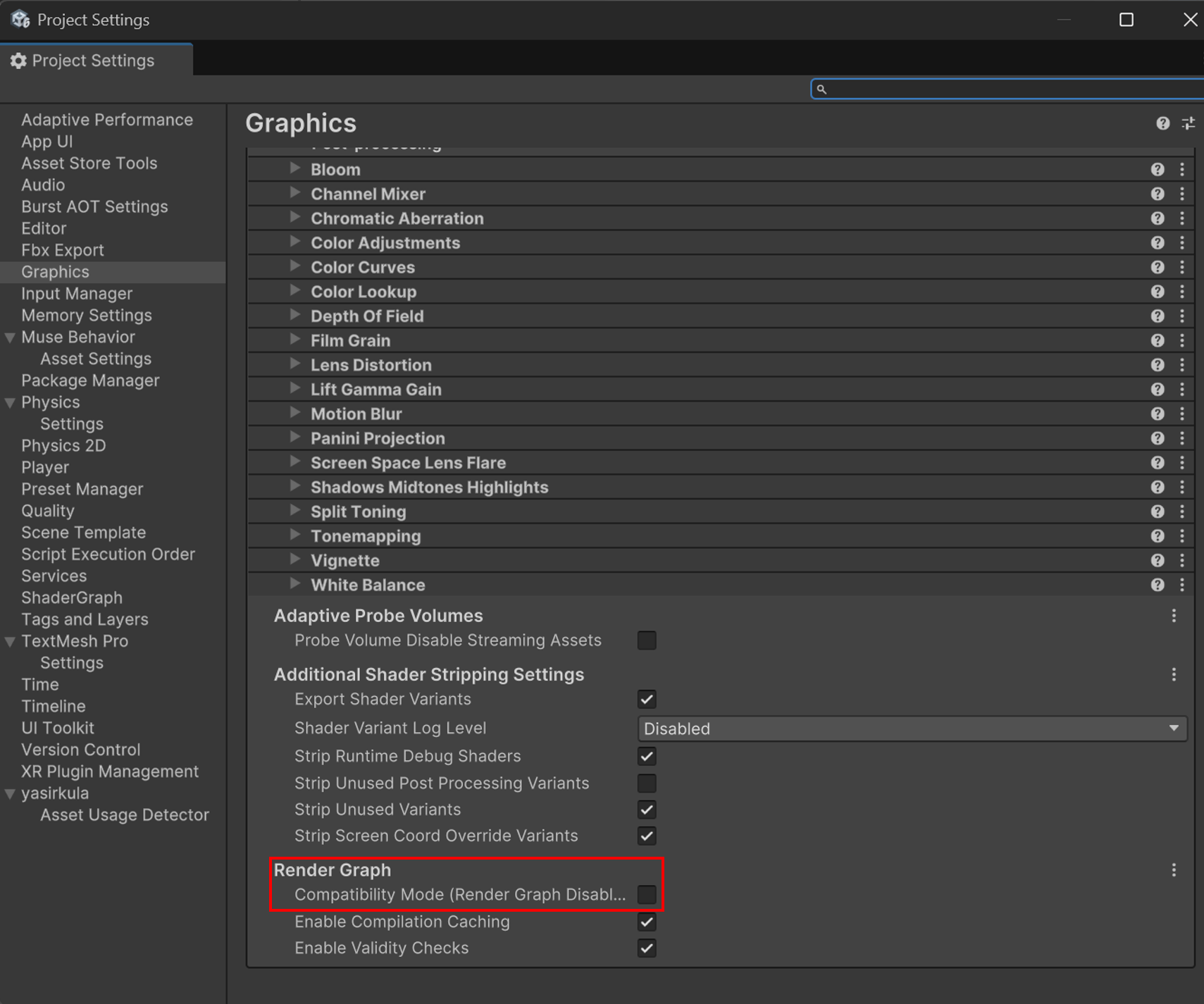
When upgrading projects to Unity 6, the Render Graph compatibility mode must be disabled for highlighting to work correctly:
1. Open **Edit > Project Settings**
2. Navigate to **Graphics**
3. Find **Render Graph Settings**
4. Disable **Compatibility Mode**
5. Restart Unity Editor