> For the complete documentation index, see [llms.txt](https://doc.realvirtual.io/llms.txt). Markdown versions of documentation pages are available by appending `.md` to page URLs; this page is available as [Markdown](https://doc.realvirtual.io/components-and-scripts/scene-interaction/lamp.md).
# Lamp
## Overview
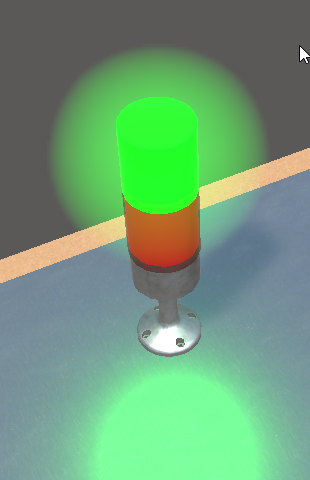
The **Lamp** component turns any mesh into a visual status indicator — a signal tower light, a button lamp, a machine state beacon. It drives the emission color and intensity of the renderer through a `MaterialPropertyBlock`, so no per-renderer material is instantiated and GPU batching is preserved. The lamp can be switched on and off, set to flash at a configurable rate, and driven directly from PLC signals.
{% hint style="info" %}
This component was reworked in realvirtual **6.3.3** to use emission overrides via `MaterialPropertyBlock`.
{% endhint %}
{% hint style="warning" %}
The shared material on the lamp's MeshRenderer must have **emission enabled** (URP Lit, HDRP Lit, or Standard with the `_EMISSION` keyword active) for the color override to be visible. When you add the component in the editor it assigns the built-in **Lamp** material automatically.
{% endhint %}
## Properties
**On Color** (Color) The emission color shown while the lamp is on. Also applied as the base color so the lamp reads correctly when unlit.
**Intensity** (float) HDR emission intensity multiplier applied to the On Color. Higher values produce a stronger glow and bloom. Set to `0` for a flat, non-glowing color.
**Flashing** (boolean) When enabled, the lamp blinks instead of staying steady. Can also be driven at runtime by the flashing signal.
**Period** (float) Flashing period in seconds — the full on/off cycle length. The lamp is on for half the period and off for the other half.
**Lamp On** (boolean) The current on/off state. Toggle it in the Inspector to test, or let the PLC signal control it.
**Signal Lamp On** (PLCOutputBool) PLC signal that switches the lamp on and off. When assigned, it overrides the manual Lamp On state each frame.
**Signal Lamp Flashing** (PLCOutputBool) PLC signal that enables or disables flashing mode at runtime.
## Quick Start
1. Add the **Lamp** component to a GameObject that has a MeshRenderer (e.g. a cylinder or a signal-light mesh).
2. Pick the **On Color** and adjust **Intensity** until the glow looks right.
3. To test, enable **Lamp On** in the Inspector during play mode.
4. For PLC control, assign **Signal Lamp On** (and optionally **Signal Lamp Flashing**) to your interface signals.
5. For a blinking warning light, enable **Flashing** and set the **Period**.
## Common Use Cases
* **Signal tower** – Stack several lamps (red/amber/green) driven by machine-state signals.
* **Button lamps** – Illuminate operator panel buttons based on PLC outputs.
* **Fault indication** – Flashing red lamp tied to an alarm or collision signal.
* **Status beacon** – Steady green for running, flashing amber for warning.
## See Also
* [Signals and Interfaces](https://github.com/game4automation/doc/blob/doc/components-and-scripts/interfaces/README.md)
***
© 2025 realvirtual GmbH [https://realvirtual.io](https://realvirtual.io/) - All rights reserved.
---
# Agent Instructions
This documentation is published with GitBook. GitBook is the documentation platform designed so that both humans and AI agents can read, navigate, and reason over technical content effectively. Learn more at gitbook.com.
## Querying This Documentation
If you need additional information that is not directly available in this page, you can query the documentation by asking a question.
Perform an HTTP GET request on the following URL with the `ask` and `goal` query parameters:
```
GET https://doc.realvirtual.io/components-and-scripts/scene-interaction/lamp.md?ask=&goal=
```
`ask` is the immediate question: it should be specific, self-contained, and written in natural language.
`goal` is what the user is ultimately trying to achieve, the reason they need the answer. Sharing it helps GitBook give you a better, more relevant answer. A goal is most helpful when it describes the outcome the user wants rather than restating the question. For example, with `ask=how do I create an API token`, a goal like `automate deployments from our CI pipeline` lets GitBook tailor the answer to that use case.
The response will contain a direct answer to the question and relevant excerpts and sources from the documentation.
Use this mechanism when the answer is not explicitly present in the current page, you need clarification or additional context, or you want to retrieve related documentation sections.