> For the complete documentation index, see [llms.txt](https://doc.realvirtual.io/llms.txt). Markdown versions of documentation pages are available by appending `.md` to page URLs; this page is available as [Markdown](https://doc.realvirtual.io/components-and-scripts/robot-program-export.md).
# Robot Program Export (Pro, Beta)
{% hint style="info" %}
Robot Program Export is only included in realvirtual Professional.
{% endhint %}
{% hint style="warning" %}
**Beta feature.** The generated output is a **copy-paste template**, not a complete, ready-to-run robot program. Always load and validate the code on a (virtual) controller before running it on real hardware, and start at a reduced speed override. Tool, base/work-object, frame and I/O addressing stay your responsibility on the controller.
{% endhint %}
{% hint style="info" %}
This feature was added in realvirtual **6.3.4** (Professional).
{% endhint %}
Robot Program Export turns a robot path you teach in realvirtual ([Robot Inverse Kinematics](/components-and-scripts/robot-inverse-kinematics.md)) into ready-to-paste controller code. It reads the targets of an **IK Path**, re-solves each one, and generates the axis angles and Cartesian poses as a program template for the major robot controllers.
This is an **offline** helper for virtual commissioning: there is no live connection and no automatic upload to the controller. You generate the text, copy it (or save it to a file), and paste it into the controller's program editor.
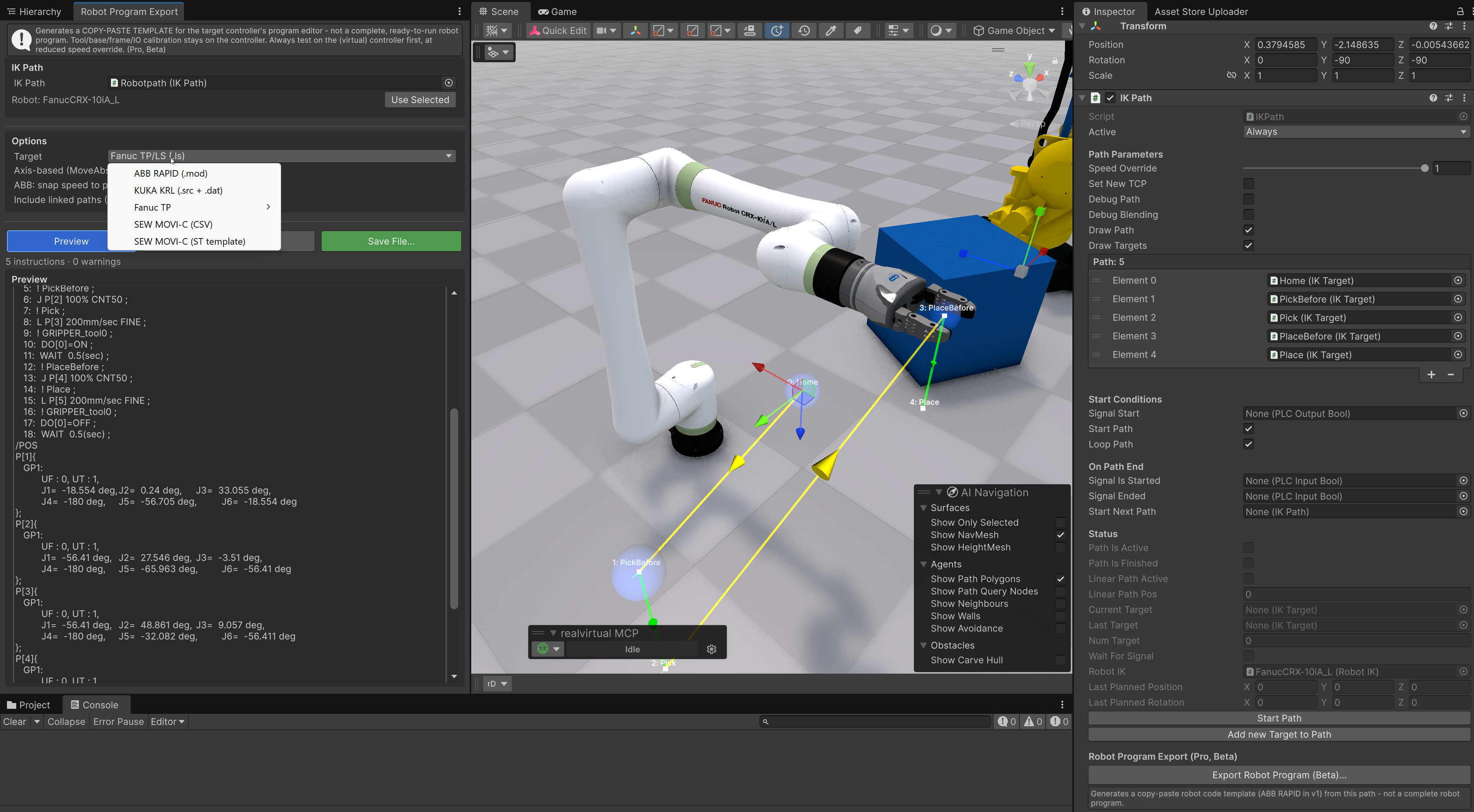
Robot Program Export window with live preview, next to the IK Path inspector button
## Important: it is a template, not a finished program
The export produces exactly **one instruction per IK Target** — it does not sample or interpolate the path between targets. The robot follows precisely the points and poses you defined.
What the template does **not** include (you complete this on the controller):
* Calibrated tool data, base / work-object and user frames (the export falls back to defaults such as `tool0` / `wobj0`, `TOOL_DATA[1]` / `BASE_DATA[1]`, `UFRAME 0` / `UTOOL 1`).
* Real signal addresses. Signal names from the path are written as comments; for KUKA and Fanuc a placeholder index is used (remap it on the controller).
* Safety logic, program flow and external-axis values.
The chosen template character is also written into the header of every generated file.
## Supported targets
| Target | Output | Notes |
| ------------------------ | ----------------------------------------------- | --------------------------------------------------------------------------------------------------------------------------------------------------------------------------------------------------------------------------------------------------------------------------------------------------- |
| **ABB RAPID** | `.mod` module | `MoveAbsJ` (axis-based) or `MoveJ`/`MoveL` (Cartesian), `SetDO`/`WaitDI`, `WaitTime` |
| **KUKA KRL** | `.src` + `.dat` | `PTP {E6AXIS}` (axis-based) or `LIN`/`PTP {E6POS}` (Cartesian), `$APO.CDIS`, `$OUT[]`/`WAIT FOR $IN[]` |
| **Fanuc TP/LS** | `.ls` (ASCII) | Joint or Cartesian positions with `CONFIG` string, `J`/`L` moves, `DO[]`/`WAIT DI[]`. Compile to `.tp` in RoboGuide / `maketp.exe` |
| **SEW MOVI-C / MOVIKIT** | `.srlprg` sequence program | Native MOVIKIT Robotics program: `PTP_J` (joint) / `LIN` (Cartesian `X/Y/Z` + `RotZ/RotY/RotX`), `REALVAR` I/O init, `MotionSet`/blending setup, signal writes and `WAIT_TIME`. Kinematic number and MotionSet are configurable. Copy-paste template — verify on the (virtual) MOVISUITE controller |
| **Wandelbots NOVA** | `.py` (NOVA Python SDK) or `.ws` (Wandelscript) | `joint_ptp` / `cartesian_ptp` / `linear` / `io_write` executed via `plan_and_execute`. Positions in mm, orientation as a rotation vector (rad), joints in rad. The Python SDK is the recommended path; Wandelscript is deprecated by Wandelbots but still runs during the transition |
## Quick Start
1. Select your **IK Path** in the scene (the GameObject carrying the `IKPath` component).
2. Open the window via **Tools > realvirtual > Robot Program Export (Pro)**, or click **Export Robot Program (Beta)** at the bottom of the IK Path inspector.
3. Choose the **Target** controller from the dropdown.
4. Pick the motion mode (see below) and adjust the options.
5. Click **Preview** to generate the code and review it.
6. Click **Copy to Clipboard** to paste it into the controller editor, or **Save File…** to write it to disk (KUKA writes two files into a folder).
The status line shows how many instructions were generated and whether any warnings (unreachable target, gimbal lock, missing kinematics) occurred.
## Options
**Target** Selects the controller dialect: ABB RAPID, KUKA KRL, Fanuc TP/LS, SEW MOVI-C (.srlprg) or Wandelbots NOVA.
**Axis-based (MoveAbsJ) – recommended** When enabled, joint moves are exported as pure axis targets (ABB `MoveAbsJ` + `jointtarget`, KUKA `PTP {E6AXIS}`, Fanuc joint-representation positions, SEW `PTP_J`). This is unambiguous and avoids robot-configuration problems, so it is the recommended default. Turn it off for **Cartesian** output (`robtarget` / `E6POS` / `X,Y,Z + W,P,R`), which produces human-readable poses but requires correct configuration data. SEW emits joint moves as `PTP_J` and linear moves as `LIN` (Cartesian) independently of this toggle.
**SEW: Kinematic number / MotionSet** SEW MOVI-C only. The kinematic number is written to the `// KINEMATIC:` header line (the machine-specific controller kinematic id); MotionSet is emitted as `MotionSet := `. Both default to `1` and match your MOVISUITE project.
**ABB: snap speed to predefined v####** When enabled, the linear speed is mapped to the nearest predefined ABB speed value (`v5 … v7000`). When disabled, a custom `speeddata` is emitted with the exact speed. Applies to ABB only.
**Include linked paths (StartNextPath)** When disabled (default), only the selected path's own targets are exported. When enabled, the export follows the `StartNextPath` chain and concatenates all linked paths into one program.
## Output modes
* **Axis-based (recommended)** — exact solved axis angles, one move per target, free of configuration ambiguity. Best for getting a path onto the controller reliably.
* **Cartesian** — TCP poses (position + orientation) with the derived robot configuration. More readable and editable on the controller, but you must verify the configuration (ABB `robconf`, KUKA `S`/`T`, Fanuc `CONFIG`) for your cell.
## Validating the generated code
Because there is no live connection, validate the output in the controller vendor's offline tool before deploying:
* **ABB** — RobotStudio (Basic edition is free): create a virtual controller and load the `.mod`.
* **KUKA** — WorkVisual (free, syntax check) and KUKA.OfficeLite (trial, runs real KSS/KRL). The export targets classic KSS/KRL.
* **Fanuc** — RoboGuide (trial): compile the `.ls` to `.tp` and run it in a virtual work cell.
* **SEW** — load the `.srlprg` sequence program in MOVISUITE / MOVIKIT Robotics and verify it on the (virtual) controller; check the `KINEMATIC` number, `MotionSet` and the `REALVAR` signal mapping against your project.
A built-in forward-kinematics check inside realvirtual is the always-available first line of validation.
## Limitations
* **Beta** — the Cartesian configuration derivation can be wrong in edge cases; the axis-based mode is the robust path.
* **No live connection** — offline copy-paste only; no program upload (use the [robot interfaces](https://github.com/game4automation/doc/tree/doc/components-and-scripts/interfaces/README.md) for live coupling).
* **6 axes only** — external axes / positioners and multi-robot programs are not exported; ABB/KUKA external-axis fields are written as "not in use" (`9E9` / `E1..E6 = 0`).
* **No circular moves** — only point-to-point and linear moves are produced.
* **SEW is teach-in, not text-programmed** — MOVIKIT Robotics computes the inverse kinematics on the controller and its `.srlprg` sequence syntax is not publicly documented; the exporter reproduces the observed program form, so verify the `KINEMATIC`/`MotionSet`/`REALVAR` mapping and dynamics against your MOVISUITE project.
## Extending: custom postprocessors
The export uses an open architecture so you can add your own controller dialect or adapt an existing one. It has two layers:
1. **Conversion** — `IKPathToProgram.Convert(ikPath)` re-solves the path and produces a vendor-neutral `RobotProgram`: a list of `RobotMoveInstruction`s where the joint angles, the right-handed Cartesian position (mm), the rotation quaternion, the ZYX Euler angles, speeds, blend radius, signals and configuration flags are already computed once.
2. **Formatting** — a `RobotPostProcessor` subclass turns that model into controller text. The built-in ABB, KUKA, Fanuc and SEW postprocessors all share this base class.
All files live in `Packages/io.realvirtual.professional/Runtime/IK/Export/` (the base, model and converter) and `Export/Vendors/` (the per-controller postprocessors) — the existing vendor files are the best templates to copy.
### Create your own postprocessor
Subclass `RobotPostProcessor`, set the identity properties, and override the hooks you need. The base class drives the generation order (header → tool → frame → one `MoveJ`/`MoveL` per target plus its signals/dwell → footer) and writes everything into a shared `StringBuilder` (`AddLine(...)`):
```csharp
public class MyControllerPostProcessor : RobotPostProcessor
{
public override string DisplayName => "My Controller";
public override string FileExtension => ".txt";
public override string GetFileName(RobotProgram prog) => prog.Name;
protected override void Header(RobotProgram prog) => AddLine($"PROGRAM {prog.Name}");
protected override void Footer(RobotProgram prog) => AddLine("END");
protected override void MoveJ(RobotMoveInstruction m) =>
AddLine($"PTP J=[{Fmt(m.JointAngles[0])}, ... ,{Fmt(m.JointAngles[5])}] v={Fmt(m.JointSpeedPct)}%");
protected override void MoveL(RobotMoveInstruction m) =>
AddLine($"LIN X={Fmt(m.PositionMm.x)} Y={Fmt(m.PositionMm.y)} Z={Fmt(m.PositionMm.z)} " +
$"A={Fmt(m.EulerZYXDeg.z)} B={Fmt(m.EulerZYXDeg.y)} C={Fmt(m.EulerZYXDeg.x)} v={Fmt(m.LinSpeedMmS)}");
protected override void SetDigitalOutput(string signal, bool value) => AddLine($"DOUT {signal}={value}");
protected override void WaitDigitalInput(string signal, bool value) => AddLine($"WAIT {signal}=={value}");
protected override void WaitTime(float seconds) => AddLine($"DELAY {Fmt(seconds)}");
}
```
Useful fields on each `RobotMoveInstruction`: `MoveType` (PTP / LIN), `JointAngles[6]` (deg), `PositionMm`, `RotationQuat`, `EulerZYXDeg` (`z`=A/Yaw, `y`=B/Pitch, `x`=C/Roll), `JointSpeedPct`, `LinSpeedMmS`, `LinAccelMmS2`, `BlendRadiusMm`, `EnableBlending`, `DwellSec`, `SetSignalName`, `WaitSignalName`, `PickPlaceSignalName` and the `Config` flags (`AbbConf`, `FanucTurns`, `Flip`, `Lower`, `KukaStatus`, `KukaTurn`). The static `RobotCoordConverter` provides the shared coordinate helpers (right-handed conversion, ZYX Euler, configuration flags).
For more control you can override:
* `Emit(RobotProgram)` — to produce **multiple files** (KUKA emits `.src` + `.dat` this way).
* `Generate(RobotProgram)` — to take over the **whole layout** (the ABB postprocessor collects declarations separately). The SEW postprocessor instead keeps the base generation order and only overrides `Header`/`Footer` and the motion/signal hooks (`MoveJ`/`MoveL`/`SetDigitalOutput`/`WaitTime`) to emit its `.srlprg` form.
### Register it in the window
Add your postprocessor to `RobotProgramExportWindow` (`Packages/io.realvirtual.professional/Runtime/IK/private/Editor/`): add an entry to the `VendorNames` array and a matching `case` in `CreatePostProcessor()`.
### Change an existing postprocessor
Edit the relevant file in `Export/Vendors/` (`ABBRapidPostProcessor.cs`, `KukaKrlPostProcessor.cs`, `FanucLsPostProcessor.cs`, `SewPostProcessors.cs`, `WandelbotsPostProcessors.cs`) — for example to change speed mapping, the program header, frame/tool defaults or the signal-address convention for your cell.
## See Also
* [Robot Inverse Kinematics (Pro)](/components-and-scripts/robot-inverse-kinematics.md)
* [Interfaces](https://github.com/game4automation/doc/tree/doc/components-and-scripts/interfaces/README.md)
---
# Agent Instructions
This documentation is published with GitBook. GitBook is the documentation platform designed so that both humans and AI agents can read, navigate, and reason over technical content effectively. Learn more at gitbook.com.
## Querying This Documentation
If you need additional information that is not directly available in this page, you can query the documentation by asking a question.
Perform an HTTP GET request on the following URL with the `ask` and `goal` query parameters:
```
GET https://doc.realvirtual.io/components-and-scripts/robot-program-export.md?ask=&goal=
```
`ask` is the immediate question: it should be specific, self-contained, and written in natural language.
`goal` is what the user is ultimately trying to achieve, the reason they need the answer. Sharing it helps GitBook give you a better, more relevant answer. A goal is most helpful when it describes the outcome the user wants rather than restating the question. For example, with `ask=how do I create an API token`, a goal like `automate deployments from our CI pipeline` lets GitBook tailor the answer to that use case.
The response will contain a direct answer to the question and relevant excerpts and sources from the documentation.
Use this mechanism when the answer is not explicitly present in the current page, you need clarification or additional context, or you want to retrieve related documentation sections.