> For the complete documentation index, see [llms.txt](https://doc.realvirtual.io/llms.txt). Markdown versions of documentation pages are available by appending `.md` to page URLs; this page is available as [Markdown](https://doc.realvirtual.io/components-and-scripts/interfaces/interface-tools/signal-force-set.md).

# Signal Force Set (Pro)

{% hint style="info" %}
This feature was added in realvirtual **6.3.4** (Professional).
{% endhint %}

## Overview

`SignalForceSet` lets you hold one or more PLC signals at fixed values during simulation — independent of what the PLC or simulation logic writes. This is the realvirtual equivalent of the force table in Siemens TIA Portal or Beckhoff TwinCAT: a forced signal always wins against any other writer.

The typical use case is virtual commissioning (VIB), where certain boundary signals have no real source in the simulation but must carry a defined value so the PLC program can run: voltage-present flags, emergency-stop release, system pressure, operating mode — all need to be "forced" to their nominal values before the first cycle can execute.

You can define as many force sets as you need — one per scenario. Multiple sets can be active at the same time.

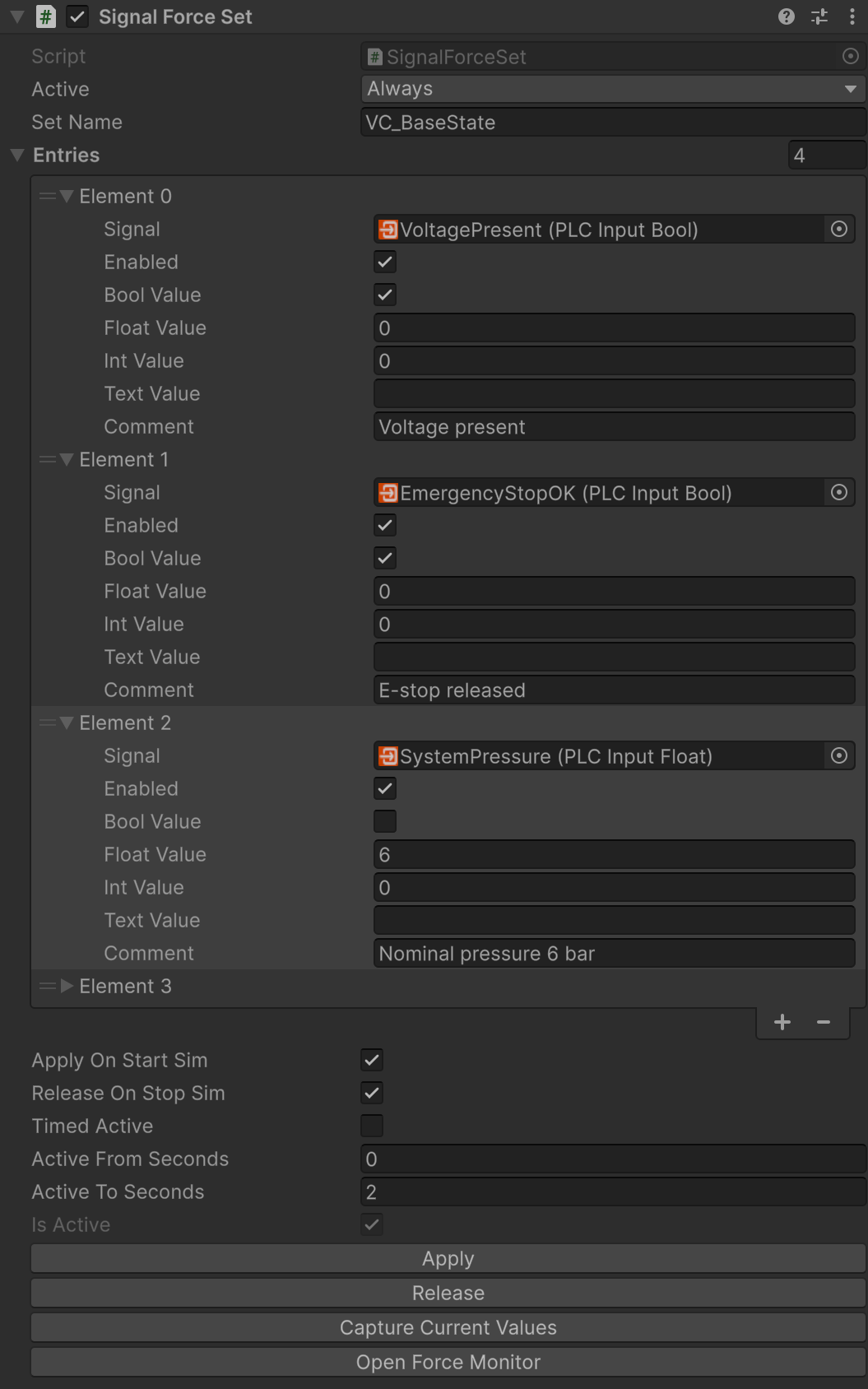
<figure><img src="/files/qdyqE6TSG5eAMH7qCQrN" alt=""><figcaption><p>The Signal Force Monitor and a force set in the DemoSignalForce sample scene</p></figcaption></figure>

> **💡 Hint**\
> A dedicated **Signal Force Monitor** window shows all active force sets and every currently forced signal in the scene. Open it from **realvirtual DEV > Testing > Signal Force Monitor** or via the **Open Force Monitor** button on any `SignalForceSet`.

## Properties

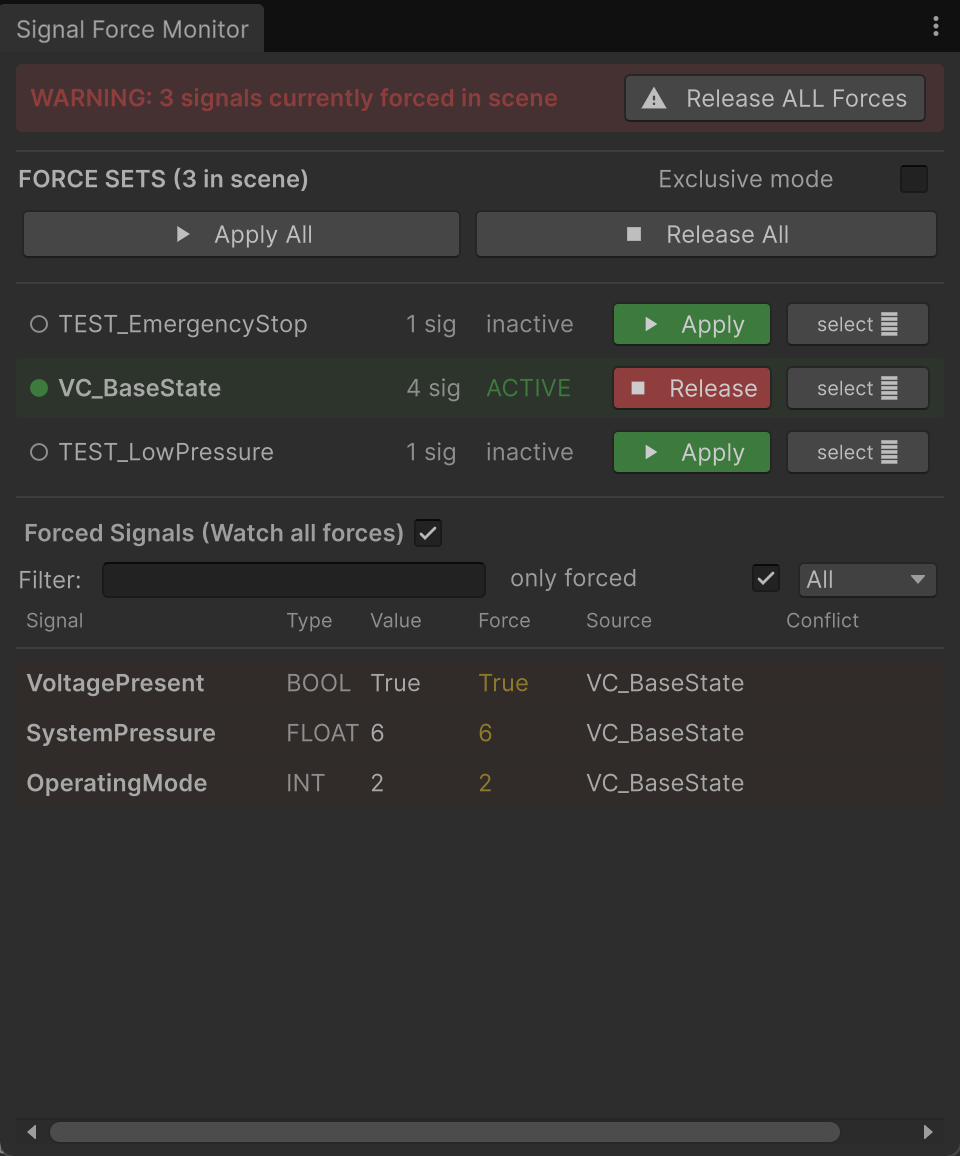
<figure><img src="/files/MCt3LtEgCeT4B481SsI2" alt=""><figcaption><p>A force set holding the virtual-commissioning base-state boundary signals</p></figcaption></figure>

### General

**Set Name** — Display name for this scenario (e.g., `VC_BaseState`, `TEST_EmergencyStop`). Shown in the Signal Force Monitor for quick identification.

### Entries

**Entries** — List of signals with their forced values. Each entry contains:

| Field                               | Description                                                                                                                     |
| ----------------------------------- | ------------------------------------------------------------------------------------------------------------------------------- |
| **Signal**                          | Reference to the PLC signal to force (PLCInputBool, PLCOutputBool, PLCInputFloat, etc.)                                         |
| **Enabled**                         | Whether this entry is applied when the set is active. Uncheck to temporarily exclude a signal without removing it from the list |
| **Bool / Float / Int / Text Value** | Target value to force. The visible field matches the signal type                                                                |
| **Comment**                         | Free-text note for documentation (e.g., `"Voltage present"`, `"Automatic mode"`)                                                |

### Behavior

**Apply On Start Sim** — Automatically apply this force set when the simulation starts. Enable this for the VIB base state so the PLC always starts with correct boundary conditions.

**Release On Stop Sim** — Automatically release all forces when the simulation stops. Enabled by default as a safety measure to prevent forces from persisting unnoticed.

### Timed Active

**Timed Active** — Activate the set only within a time window after simulation start, then release automatically. Useful for startup pulses and reset sequences.

**Active From Seconds** — Start time in simulation seconds after which the set becomes active.

**Active To Seconds** — End time in simulation seconds after which the set is automatically released.

### Status

**Is Active** *(read-only)* — Shows whether this force set is currently applied. Visible in the Inspector at runtime for quick status checks.

### Inspector Buttons

| Button                     | Action                                                                                        |
| -------------------------- | --------------------------------------------------------------------------------------------- |
| **Apply**                  | Force all enabled entries immediately                                                         |
| **Release**                | Release all forces from this set immediately                                                  |
| **Capture Current Values** | Read the current live values of all listed signals and store them as the forced target values |
| **Open Force Monitor**     | Open the Signal Force Monitor editor window                                                   |

## Signal Force Monitor

The Signal Force Monitor is a persistent editor window that gives you a scene-wide overview of all active forces.

Open it from **realvirtual DEV > Testing > Signal Force Monitor** or via the **Open Force Monitor** button on any `SignalForceSet`.

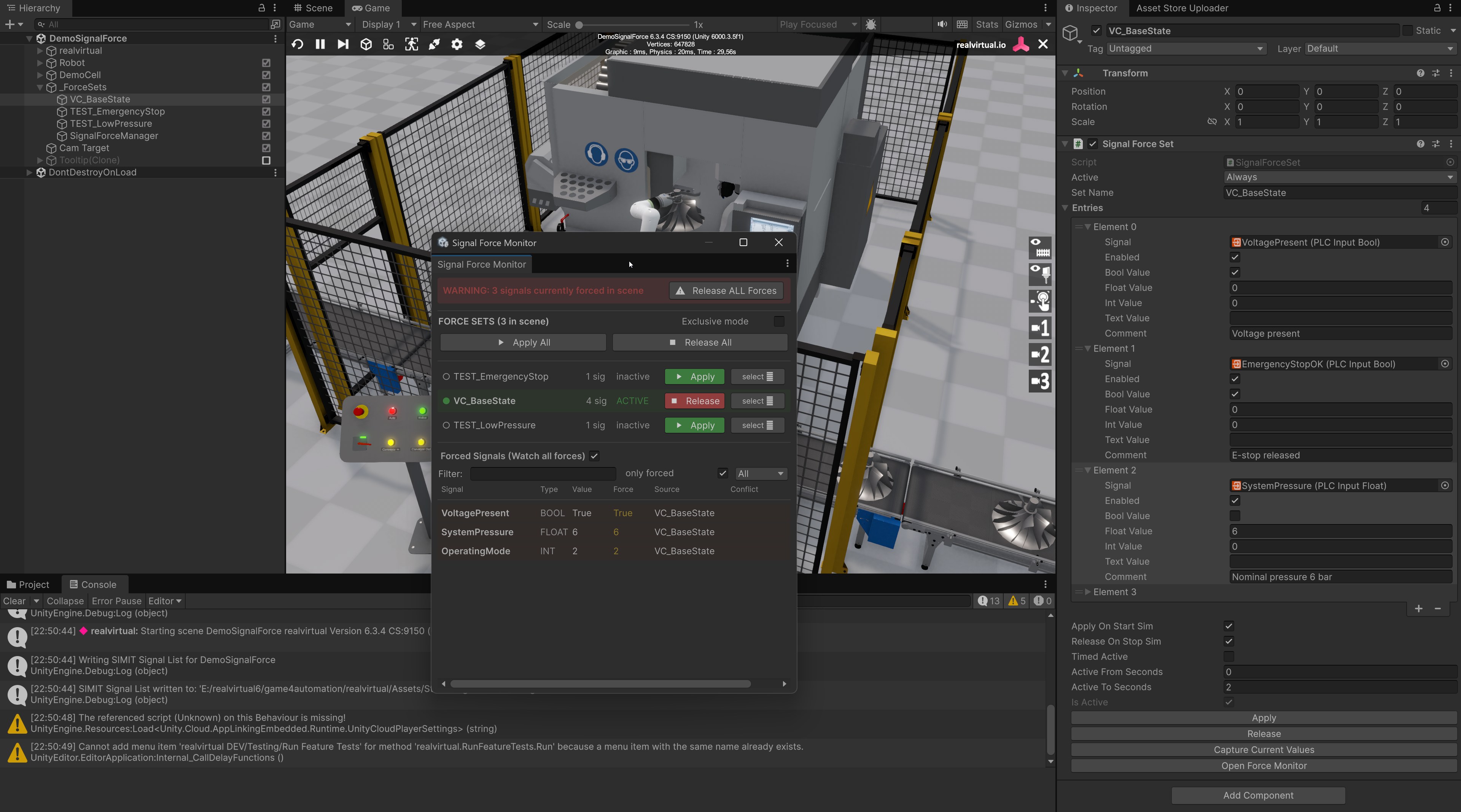
<figure><img src="/files/THPuMexakdIEOD8y3p2h" alt=""><figcaption><p>The Signal Force Monitor — force sets on top, all currently forced signals below</p></figcaption></figure>

The window shows:

* **All force sets** in the scene with their current active state and per-set **Apply** / **Release** buttons
* **Watch all forces** — a live list of every currently forced signal, including signal type, current value, forced value, and the source set
* **Release All** button to remove all active forces in one click
* A **persistent warning banner** while any force is active, so no forced signal goes unnoticed

## Quick Start

1. Add a `SignalForceSet` component to any GameObject (`realvirtual > Professional > Signal Force Set`)
2. Set a descriptive **Set Name** (e.g., `VC_BaseState`)
3. Click the **+** icon in the **Entries** list and drag the signal you want to force into the **Signal** field
4. Set the desired **Value** for each entry and add a **Comment** for clarity
5. Enable **Apply On Start Sim** so the base state is always applied at simulation start
6. Press **Apply** in the Inspector or start the simulation to activate the forces
7. Open the **Signal Force Monitor** to confirm which signals are currently forced

## Common Use Cases

* **VIB base state** — Force boundary signals (voltage-present, e-stop released, system pressure, operating mode) so the PLC program can execute its first scan without waiting for missing feedback
* **Test scenario: emergency stop triggered** — Create a dedicated set with the e-stop signal forced to `false` to verify the PLC reacts correctly; switch between sets to compare behavior
* **Test scenario: pressure too low** — Force a pressure signal below its threshold to test protective shutdown logic without modifying physical hardware
* **Startup pulse** — Use **Timed Active** with a 0–2 second window to emit a reset pulse on program start, then release automatically once the PLC has initialized
* **Demo scenes** — Keep a force set with **Apply On Start Sim** enabled so demo environments always start in a defined, runnable state

## MCP Tools

For automation and AI-agent control, realvirtual provides MCP tools to force and release signals programmatically:

* `signal_force_bool`, `signal_force_float`, `signal_force_int` — Force individual signals by name
* `signal_unforce` — Release the force on a single signal
* `signal_force_list` — List all currently forced signals
* `force_set_apply`, `force_set_release` — Apply or release a named force set
* `force_set_list` — List all force sets in the scene with their active state

## See Also

* [Interfaces Overview](/components-and-scripts/interfaces.md) — All available interfaces and signal tools
* [Signal Test Generator](/components-and-scripts/interfaces/interface-tools/signal-test-generator.md) — Generate cyclic test values for interface testing without a PLC
* [Signal Manager](/components-and-scripts/interfaces/interface-tools/signal-manager.md) — Automatically connect and manage large numbers of signals
* [Signal Importer / Exporter](/components-and-scripts/interfaces/signal-importer-exporter.md) — Import and export signal configurations


---

# Agent Instructions
This documentation is published with GitBook. GitBook is the documentation platform designed so that both humans and AI agents can read, navigate, and reason over technical content effectively. Learn more at gitbook.com.

## Querying This Documentation
If you need additional information that is not directly available in this page, you can query the documentation dynamically by asking a question.

Perform an HTTP GET request on the current page URL with the `ask` query parameter, and the optional `goal` query parameter:

```
GET https://doc.realvirtual.io/components-and-scripts/interfaces/interface-tools/signal-force-set.md?ask=<question>&goal=<endgoal>
```

`ask` is the immediate question: it should be specific, self-contained, and written in natural language.
`goal` is optional and describes the broader end goal you are ultimately trying to accomplish on behalf of the user. GitBook uses it to tailor the answer towards what is most useful for that goal.

The response will contain a direct answer to the question and relevant excerpts and sources from the documentation.

Use this mechanism when the answer is not explicitly present in the current page, you need clarification or additional context, or you want to retrieve related documentation sections.