# Festo AX Controls / PLCnext (Pro)

{% hint style="info" %}
This feature was added in realvirtual **6.3.3** (Professional) — Beta
{% endhint %}

## Overview

The Festo AX Controls interface connects realvirtual directly to **Festo AX Controls** controllers running **PLCnext Technology** — the open IEC 61131-3 runtime platform developed by Phoenix Contact and adopted by Festo for their AX Controls series.

Communication uses Festo's **RSC (Remote Service Call)** library over TCP port **41100**, providing direct access to PLCnext Global Data Space (GDS) variables. The interface supports two data exchange modes: **subscription mode**, where the controller pushes variable updates at a configurable sample rate, and **polling mode**, where realvirtual reads all output variables each cycle.

Both Boolean, integer, float, and string variable types are supported. An editor button connects to the controller at design time to import variables and create realvirtual signal objects automatically.
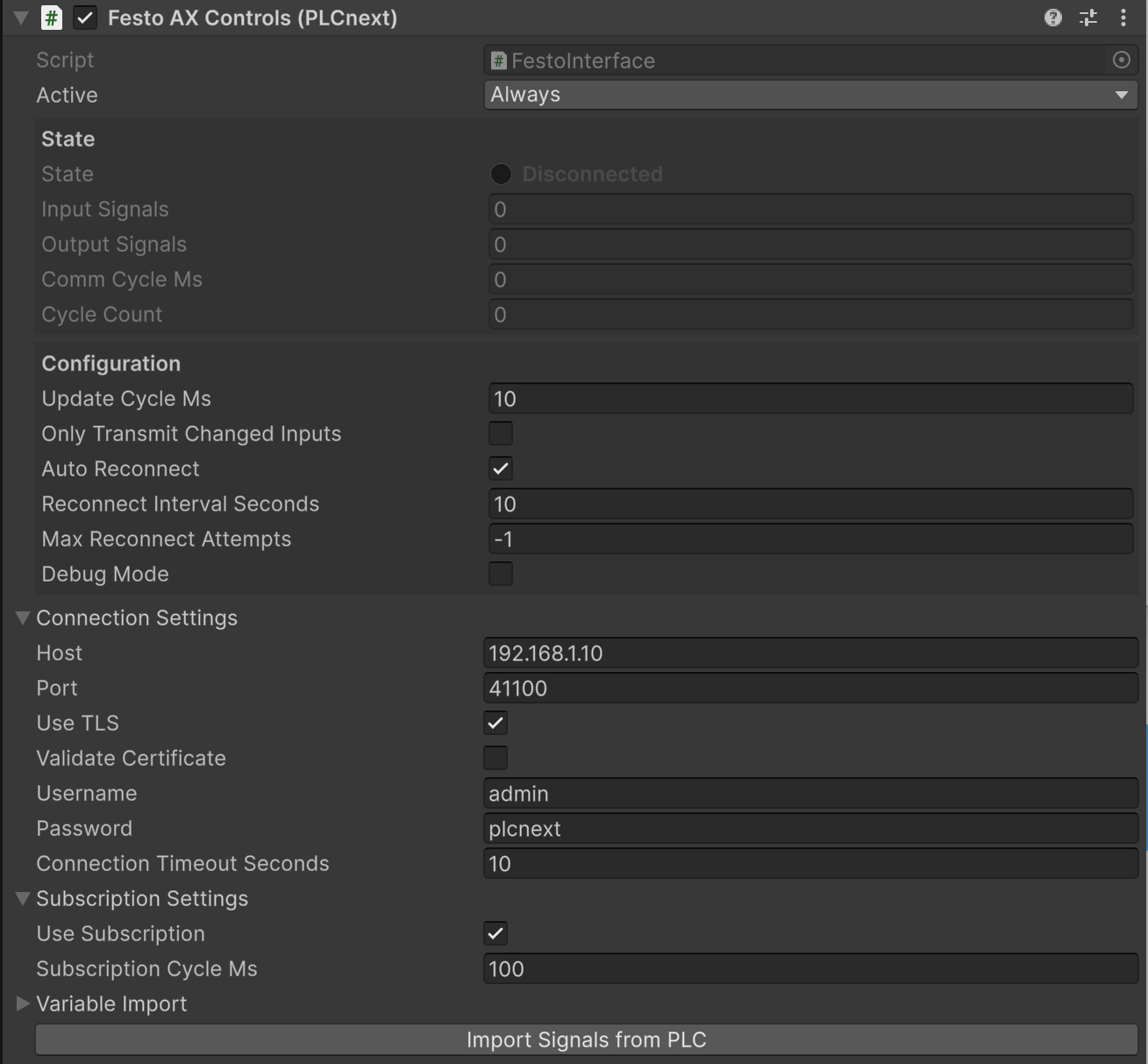
<figure><img src="/files/FGiYYzcXCFgIDaNUMwJD" alt=""><figcaption><p>Festo AX Controls (PLCnext) interface Inspector showing connection, subscription, and variable import settings</p></figcaption></figure>

## Prerequisites

1. **realvirtual Professional** — The Festo interface and RSC DLLs are included in the Professional package.
2. **Network connectivity** — Your development PC must be able to reach TCP port **41100** on the Festo controller.
3. **PLCnext firmware** — The controller must be running PLCnext firmware with RSC services enabled (standard on all AX Controls firmware releases).

## Properties

### Connection Settings

| Property                       | Description                                                                                           |
| ------------------------------ | ----------------------------------------------------------------------------------------------------- |
| **Host**                       | IP address or hostname of the Festo PLCnext controller (default: `192.168.1.10`)                      |
| **Port**                       | RSC service TCP port (default: `41100`)                                                               |
| **Use TLS**                    | Enable TLS encryption for the RSC connection. Recommended for production deployments                  |
| **Validate Certificate**       | Validate the server's TLS certificate. Disable this for self-signed certificates in test environments |
| **Username**                   | PLCnext authentication username (default: `admin`)                                                    |
| **Password**                   | PLCnext authentication password (default: `plcnext`)                                                  |
| **Connection Timeout Seconds** | Timeout in seconds for connection and read/write operations (default: `10`)                           |

### Subscription Settings

| Property                  | Description                                                                                                                                 |
| ------------------------- | ------------------------------------------------------------------------------------------------------------------------------------------- |
| **Use Subscription**      | Use PLCnext real-time subscription mode for output signals. When disabled, polling is used instead                                          |
| **Subscription Cycle Ms** | Sample rate in milliseconds for subscription mode. Lower values give higher update rates. Minimum effective value is 10 ms (default: `100`) |

### Variable Import

| Property                     | Description                                                                                                                                                                 |
| ---------------------------- | --------------------------------------------------------------------------------------------------------------------------------------------------------------------------- |
| **Import Root Path**         | Root component path on the PLCnext to browse for variables during signal import (default: `Arp.Plc.Eclr` for the IEC 61131-3 runtime). Leave empty to browse all components |
| **Default Import Direction** | Default signal direction assigned to imported variables (`Input` or `Output`)                                                                                               |

**Button:**

* **Import Signals from PLC** — Connects to the controller from the Unity Editor, browses variables under the Import Root Path, and creates or updates realvirtual signal objects as children of the interface component.

## Quick Start

1. Add the **Festo AX Controls (PLCnext)** component to a GameObject in your scene via **Add Component > realvirtual > Interfaces > Festo AX Controls (PLCnext)**
2. Add `REALVIRTUAL_FESTO` to **Edit > Project Settings > Player > Scripting Define Symbols** and recompile
3. Set **Host** to the IP address of your Festo controller
4. Enter your **Username** and **Password**
5. Configure **Import Root Path** to point to your PLC program (e.g. `Arp.Plc.Eclr`)
6. Click **Import Signals from PLC** — the interface connects, browses variables, and creates signal objects
7. Review the imported signals and set **Input** direction on any variables that Unity should write to the PLC
8. Press Play — the interface connects automatically and signal exchange starts

## Signal Address Format

Each signal stores its PLCnext variable path in the `Address` metadata field. The path format follows the PLCnext GDS convention:

```
ComponentName/ProgramName.VariableName
```

**Examples:**

| Signal               | Address                                               |
| -------------------- | ----------------------------------------------------- |
| Boolean motor status | `Arp.Plc.Eclr/MainInstance.Motor1_Running`            |
| Integer counter      | `Arp.Plc.Eclr/MainInstance.PartCounter`               |
| Array element        | `Arp.Plc.Eclr/MainInstance.ConveyorSpeeds[0]`         |
| Array slice          | `Arp.Plc.Eclr/MainInstance.ConveyorSpeeds[0:9]`       |
| Struct field         | `Arp.Plc.Eclr/MainInstance.DriveState.ActualPosition` |

The component name for the standard IEC 61131-3 (Eclr) runtime is `Arp.Plc.Eclr`. Your program instance name is the name assigned to the program in the PLCnext Engineer project.

## Communication Modes

### Subscription Mode (default)

When **Use Subscription** is enabled, the interface registers all output signals with the PLCnext subscription service. The controller pushes updated values at the configured **Subscription Cycle Ms** rate. This is the recommended mode for real-time simulation as it minimizes latency and reduces network overhead.

If the PLCnext firmware does not support the subscription service, the interface automatically falls back to polling mode and logs a warning.

### Polling Mode

When **Use Subscription** is disabled, the interface performs a batched read of all output signal addresses each communication cycle. This mode is compatible with all PLCnext firmware versions but has higher latency than subscription mode.

Input signals (Unity writing to the PLC) always use batched write operations regardless of which mode is selected. On the first cycle after connection, all input values are sent to initialize the PLC state.

## Importing Signals from PLC

The **Import Signals from PLC** editor button provides one-click signal discovery:

1. The interface connects to the controller using the configured credentials
2. Variables are browsed from **Import Root Path** using the PLCnext variable browse service
3. For each discovered variable, a realvirtual signal object is created as a child of the interface component
4. The `Address` metadata field is set to the full PLCnext instance path
5. All imported signals receive the **Default Import Direction** — change individual signals to `Input` for variables that Unity should write back to the PLC

Supported PLCnext data types map to realvirtual signal types as follows:

| PLCnext Types                                                   | realvirtual Signal Type |
| --------------------------------------------------------------- | ----------------------- |
| `BOOL`                                                          | Bool                    |
| `INT`, `UINT`, `SINT`, `DINT`, `UDINT`, `BYTE`, `WORD`, `DWORD` | Int                     |
| `REAL`, `LREAL`                                                 | Float                   |
| `STRING`, `WSTRING`                                             | Text                    |

Variables with unsupported types are skipped and a warning is logged to the Unity console.

## See Also

* [Interfaces Overview](/components-and-scripts/interfaces.md) — All available interfaces
* [Signal Manager](/components-and-scripts/interfaces/interface-tools/signal-manager.md) — Managing PLC signals
* [Custom Interfaces](/components-and-scripts/interfaces/custom-interfaces.md) — How to build your own interface
* [Compiler Defines](/advanced-topics/compiler-defines.md) — Adding scripting define symbols
* [Keba Interface (Pro)](/components-and-scripts/interfaces/keba-interface.md) — Similar RSC-based controller interface
* [TwinCAT (Pro)](/components-and-scripts/interfaces/twincat.md) — Another IEC 61131-3 based interface

***

© 2025 realvirtual GmbH [https://realvirtual.io](https://realvirtual.io/) - All rights reserved. No part of this publication may be reproduced, distributed, or transmitted in any form or by any means, including printing, saving, photocopying, recording, or other electronic or mechanical methods, without the prior written permission of the publisher.


---

# Agent Instructions: Querying This Documentation

If you need additional information that is not directly available in this page, you can query the documentation dynamically by asking a question.

Perform an HTTP GET request on the current page URL with the `ask` query parameter:

```
GET https://doc.realvirtual.io/components-and-scripts/interfaces/festo-plcnext.md?ask=<question>
```

The question should be specific, self-contained, and written in natural language.
The response will contain a direct answer to the question and relevant excerpts and sources from the documentation.

Use this mechanism when the answer is not explicitly present in the current page, you need clarification or additional context, or you want to retrieve related documentation sections.
