For the complete documentation index, see llms.txt. This page is also available as Markdown.

Mesh Tools (Pro)

This feature was added in realvirtual 6.3.3 (Professional)

Mesh Tools is a tabbed editor window that combines mesh-related utilities for working with imported CAD models. It provides two tools: Auto Correct Pivots for fixing off-center mesh origins, and Mesh Separator for splitting combined meshes into individual parts.

Accessing Mesh Tools

Editor Window:

Tools > realvirtual > Mesh Tools (Pro)

Context Menu (quick access for Mesh Separator):

  • Right-click a GameObject > realvirtual > Separate Mesh

  • Right-click a GameObject > realvirtual > Merge Child Meshes


Tab 1: Auto Correct Pivots

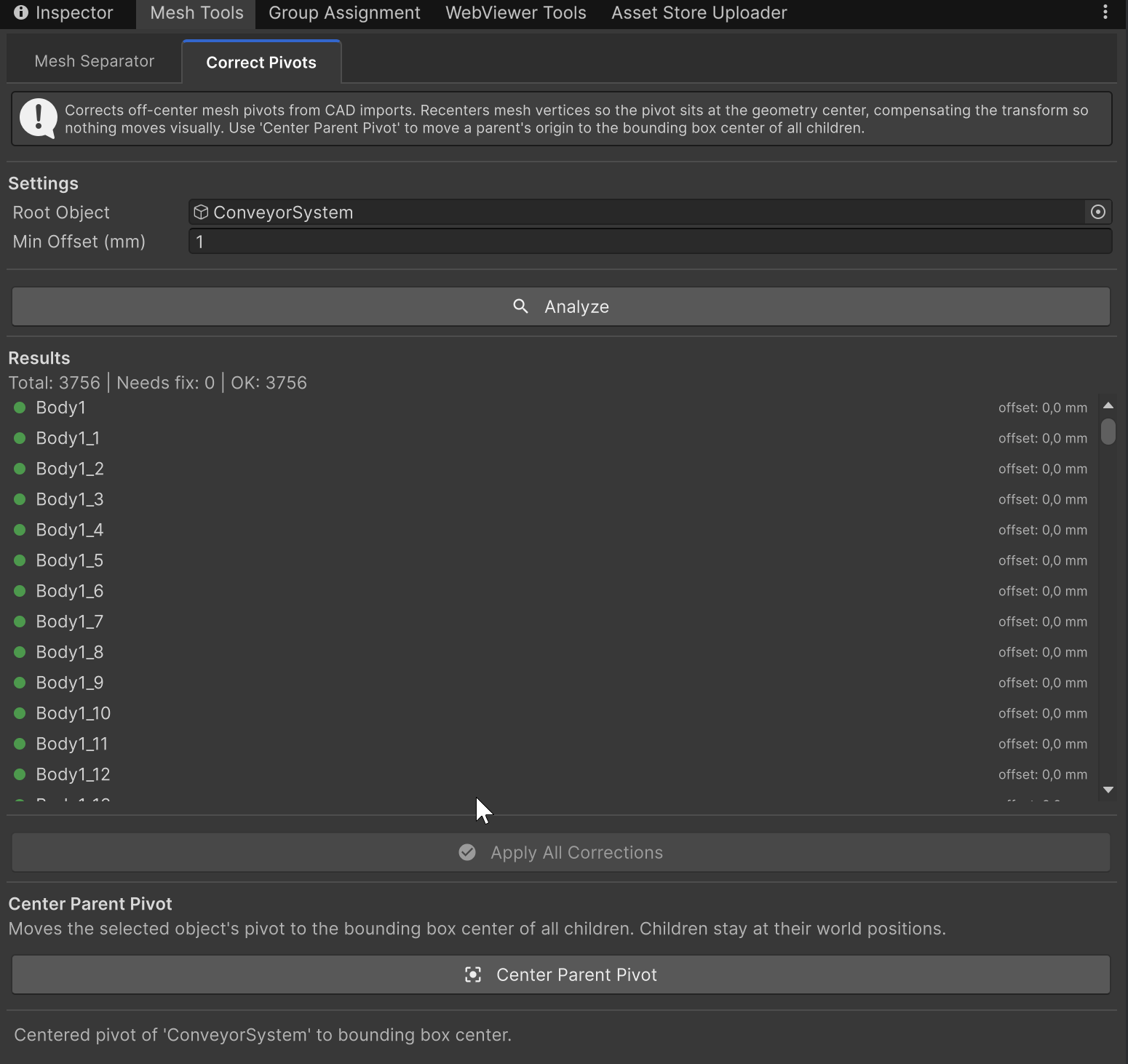
Correct Pivots tab showing analysis results for a conveyor system — all 12 meshes passed with zero offset
Overview

CAD models frequently arrive with mesh pivots (transform origins) far away from the actual geometry. A small bracket might have its origin at the machine's global zero point, hundreds of millimeters away. This causes poor rotation behavior, difficulty placing objects, and issues with Drive axes. Auto Correct Pivots fixes this by recentering the mesh vertices around the local origin and compensating the transform so the geometry stays in exactly the same world position.

How It Works

For each mesh in the selected hierarchy, the tool:

  1. Calculates how far the mesh center is from the local origin

  2. Clones the mesh and offsets all vertices so the center becomes the origin

  3. Moves the transform to compensate, keeping the mesh visually in place

  4. Preserves all child positions so nothing in the hierarchy shifts

  5. Updates any MeshCollider referencing the original mesh

  6. Saves the corrected mesh as an asset in Assets/CorrectedPivots/

Settings

  • Root Object -- The root GameObject to scan. All MeshFilters in the hierarchy below this object are analyzed. Defaults to the current selection.

  • Min Offset (mm) -- Only meshes whose pivot is further than this distance from the mesh center are corrected. Default: 1.0 mm. Increase this to skip meshes with minor offsets.

Workflow

  1. Select the root object of your imported CAD model

  2. Open Tools > realvirtual > Mesh Tools (Pro)

  3. The Auto Correct Pivots tab is shown by default

  4. Set the root object and adjust the threshold if needed

  5. Click Analyze to scan the hierarchy -- the results list shows each mesh with its offset distance

  6. Review the results -- click any item to ping/select it in the Hierarchy

  7. Click Apply All Corrections to batch-correct all meshes above the threshold

  8. Use Ctrl+Z to undo the entire operation if needed

What Gets Skipped

  • Meshes with offset below the threshold

  • GameObjects with a SkinnedMeshRenderer (bone-based skinning would break)

  • MeshFilters with no mesh assigned or with zero vertices

Notes

  • Corrected meshes are saved as .asset files in Assets/CorrectedPivots/. You can safely delete this folder to reclaim disk space -- the meshes are referenced by the scene.

  • If multiple GameObjects share the same source mesh, each receives its own corrected copy.

  • The operation works correctly on rotated and scaled objects, including objects deep in nested hierarchies.


Tab 2: Mesh Separator

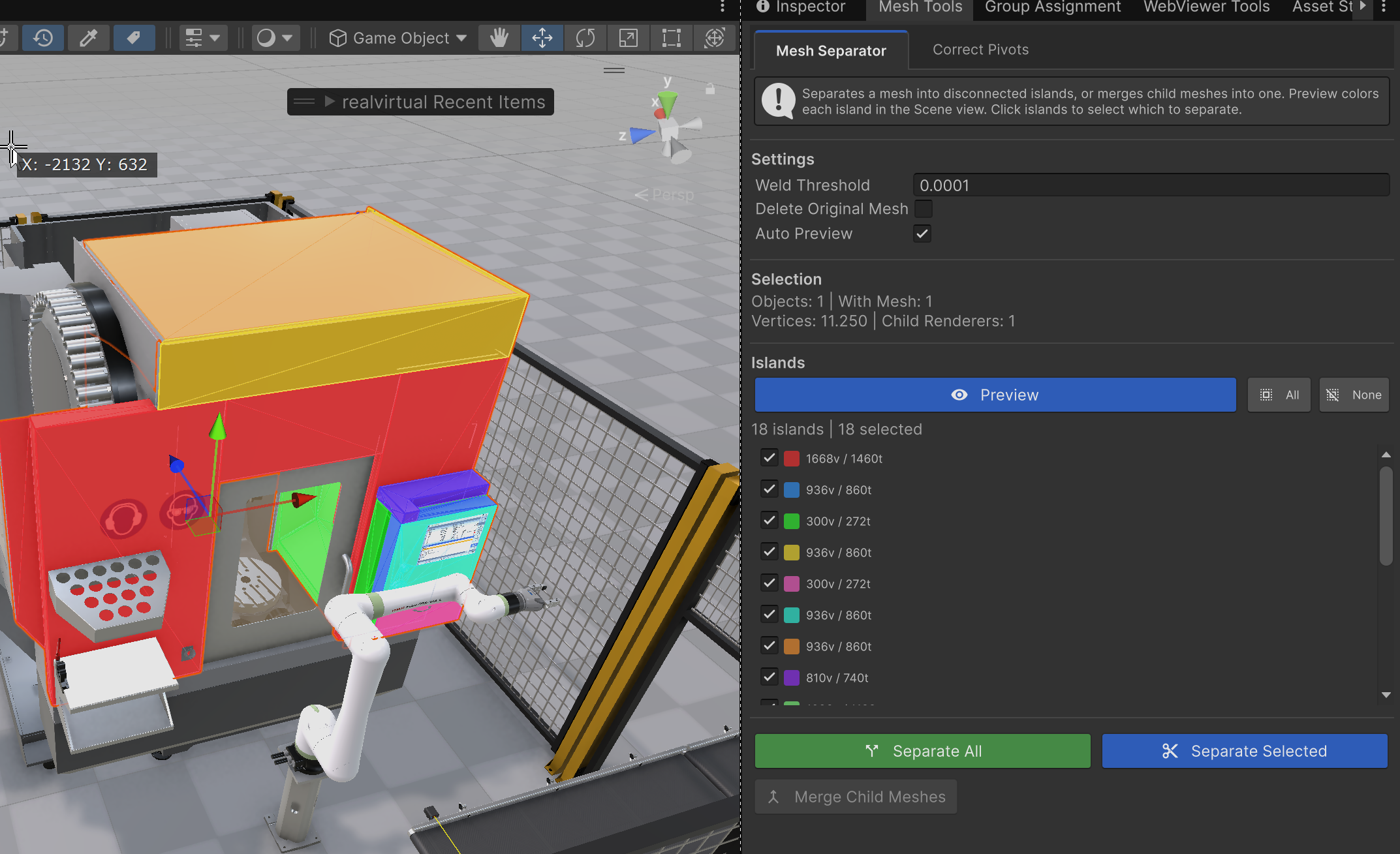
Mesh Separator with color-coded island preview in the Scene view — 18 islands detected on a machine assembly

Overview

CAD imports and mesh-baking tools often produce a single mesh containing multiple disconnected parts. The Mesh Separator detects these disconnected islands using a Union-Find algorithm with configurable vertex welding and lets you split them into individual GameObjects. You can also reverse the process by merging multiple child meshes into one combined mesh.

Key Features

  • Island Detection -- Automatically finds disconnected mesh regions using vertex connectivity analysis

  • Color-Coded Preview -- Each island is highlighted with a unique color overlay and wireframe in the Scene view

  • Selective Separation -- Choose which islands to separate using per-island toggles

  • Mesh Merging -- Combine multiple child MeshRenderers into a single mesh on the parent

  • Vertex Attribute Preservation -- Normals, tangents, UVs (all channels), vertex colors, and bone weights are preserved

  • Sub-Mesh & Material Support -- Material assignments and sub-mesh structure are maintained during separation

Settings

  • Weld Threshold -- Vertices closer than this distance (in meters) are treated as the same point for connectivity detection. Default: 0.0001. Increase this value if islands that should be connected are being split apart.

  • Delete Original Mesh -- When enabled, the original MeshFilter and MeshRenderer are removed after separation. When disabled (default), the original renderer is simply disabled.

  • Auto Preview -- Automatically updates the island preview whenever you select a new object.

Islands

Shows the detected islands with color swatches and vertex/triangle counts. Use the checkboxes to select which islands to separate. The All and None buttons quickly toggle all islands.

Actions

  • Separate All -- Separates every detected island into its own child GameObject

  • Separate Selected -- Separates only the checked islands

  • Merge Child Meshes -- Combines all child MeshRenderers into one mesh on the selected parent object

Workflow

  1. Select a GameObject with a combined mesh in your scene

  2. Open Tools > realvirtual > Mesh Tools (Pro) and switch to the Mesh Separator tab

  3. The preview activates automatically, coloring each island in the Scene view

  4. Toggle individual islands on/off using the checkboxes

  5. Click Separate All or Separate Selected

  6. The separated parts appear as child GameObjects with individual meshes

Common Use Cases

  • CAD Assembly Splitting -- Break apart imported CAD models that were exported as a single combined mesh into individual parts for animation or interaction

  • Drive Assignment -- Separate a combined mesh so each part can be assigned to its own Drive component for independent motion

  • Selective Export -- Split a mesh to isolate specific parts for GLB export or WebViewer usage

  • Performance Optimization -- Merge previously separated parts back into one mesh to reduce draw calls

  • Sensor Preparation -- Create individual colliders per part by separating the mesh first


See Also

Last updated