> For the complete documentation index, see [llms.txt](https://doc.realvirtual.io/llms.txt). Markdown versions of documentation pages are available by appending `.md` to page URLs; this page is available as [Markdown](https://doc.realvirtual.io/basics/user-interface/group-assignment-tool-pro.md).

# Group Assignment Tool (Pro)

{% hint style="info" %}
The Group Assignment Tool is a new feature in realvirtual **6.3.4**. It is a **Professional-only** feature and is not available in the Starter version.
{% endhint %}

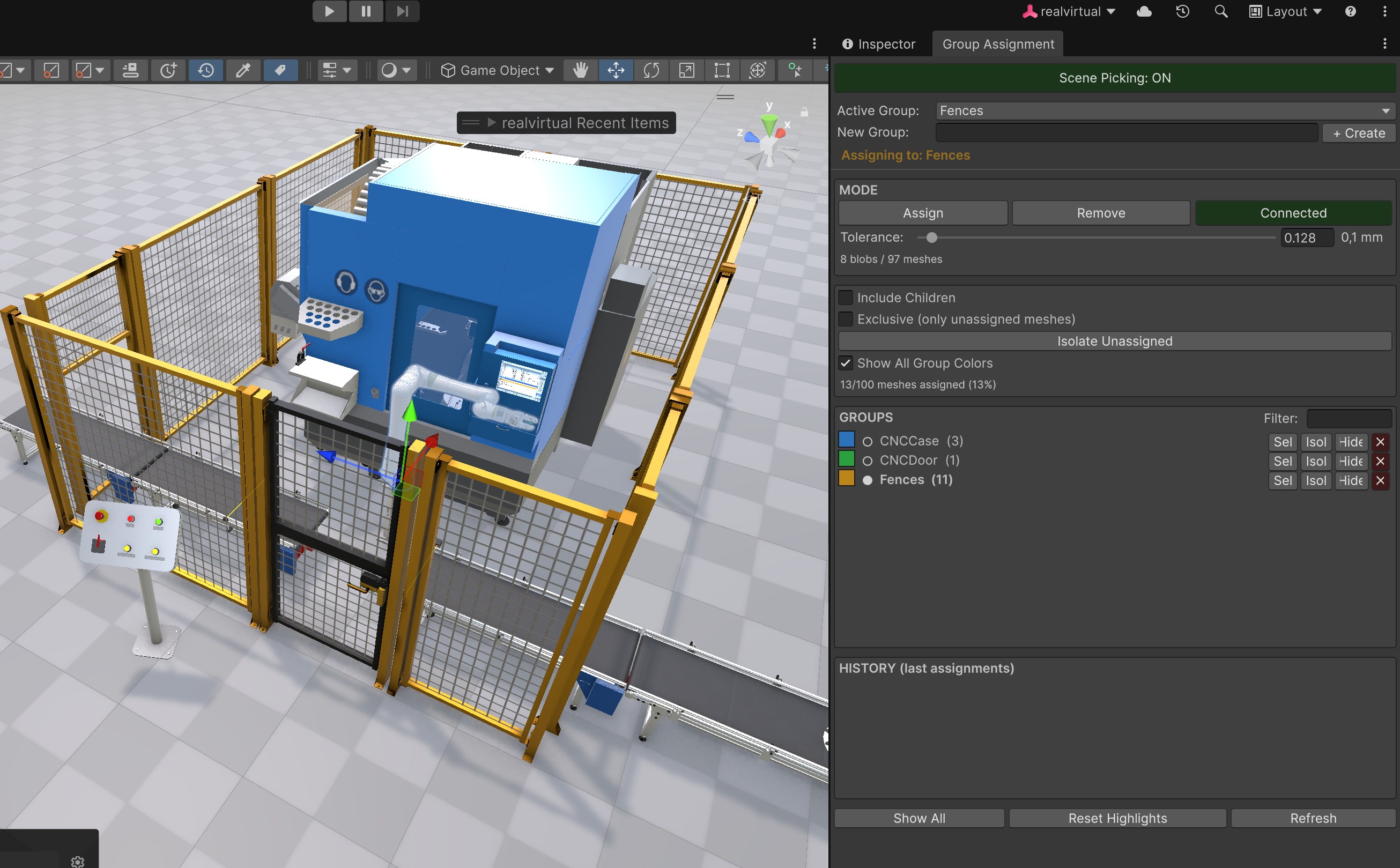
The Group Assignment Tool is a dedicated scene-picking tool for organizing GameObjects into [Groups](/components-and-scripts/motion/group.md) by clicking, dragging, or assigning whole connected assemblies directly in the Scene View. It complements the hierarchy-based [Selection Window](/basics/user-interface/selection-window.md) and the axis-based [Kinematic Tool](/basics/user-interface/kinematic-tool-pro.md) with a pure scene-picking workflow for rapid bulk assignment.

<figure><img src="/files/b7Z98pI2vnAw3mSKj9xn" alt="Group Assignment Tool assigning fences to a group in the Scene View"><figcaption><p>Painting meshes into the "Fences" group directly in the Scene View</p></figcaption></figure>

## Opening the Tool

Open the tool in one of three ways:

* Menu `Tools > realvirtual > Group Assignment (Pro)`
* Keyboard shortcut `Alt+G`
* The Group Assignment toolbar toggle in the Scene View overlay toolbar

## Scene Picking

The large button at the top toggles **Scene Picking** on and off. When it is **ON** (green) you can pick meshes in the Scene View; when **OFF** (yellow) the tool is idle and normal selection works as usual. Press `Escape` in the Scene View to switch picking off at any time.

## Active Group

Pick the group you are currently assigning to from the **Active Group** dropdown, or type a name into **New Group** and press **+ Create** to start a fresh group. The active group name is shown in its group color and is remembered across Editor sessions.

## Modes

| Mode          | Action                                                                                          |
| ------------- | ----------------------------------------------------------------------------------------------- |
| **Assign**    | Click (or drag over) meshes to add them to the active group.                                    |
| **Remove**    | Click meshes to remove them from the active group.                                              |
| **Connected** | Click a mesh to assign its entire connected assembly (flood-fill). Requires the Burst Compiler. |

You can also use modifier keys while in any mode: **Shift + Click** removes, and **Ctrl + Click** assigns the connected assembly.

### Connected Mode and Tolerance

In **Connected** mode, hovering a mesh previews the whole connected blob in the group color, and clicking assigns all of it at once. The **Tolerance** slider (0–5 mm) controls how large a gap between meshes is still treated as "connected" — increase it to bridge small gaps in imported CAD geometry. A status line shows how many blobs and meshes were detected, and an **Undo Last** button reverts the most recent connected assignment in one step.

{% hint style="info" %}
Connected mode requires the Burst Compiler. Without it the button is disabled.
{% endhint %}

## Options

| Option                                 | Description                                                                                                                                      |
| -------------------------------------- | ------------------------------------------------------------------------------------------------------------------------------------------------ |
| **Include Children**                   | Also assigns the clicked object's child meshes to the group.                                                                                     |
| **Exclusive (only unassigned meshes)** | Skips meshes that already belong to any group, so you only fill the gaps. Blocked meshes are highlighted red on hover.                           |
| **Isolate Unassigned**                 | Hides all meshes that already have a group, leaving only the unassigned ones visible — a fast way to find what still needs assigning.            |
| **Show All Group Colors**              | Tints every grouped mesh in its group color directly in the Scene View. Uses a MaterialPropertyBlock, so there is no per-frame performance cost. |

A progress line below the options shows how many meshes in the scene are already assigned, for example `73/100 meshes assigned (73%)`.

## Groups List

The **GROUPS** list shows every group in the scene with a color swatch, member count, and a filter field. Click a group name to make it active. Each row has the following buttons:

| Button   | Action                                                        |
| -------- | ------------------------------------------------------------- |
| **Sel**  | Selects all members of the group in Unity.                    |
| **Isol** | Isolates the group — hides every mesh that is not a member.   |
| **Hide** | Hides all members of the group.                               |
| **✕**    | Removes the group and all its assignments after confirmation. |

## History

The **History** panel lists the last 10 assignments (newest first). For each entry you can press **✕** to remove that object from the group again, or **◎** to ping and frame the object in the Scene View.

## Bottom Bar

| Button               | Action                                                                     |
| -------------------- | -------------------------------------------------------------------------- |
| **Show All**         | Restores everything hidden by Isolate / Hide / Isolate Unassigned.         |
| **Reset Highlights** | Clears all hover and group-color highlights.                               |
| **Refresh**          | Rescans the scene and rebuilds the group list, statistics, and highlights. |

## Quick Start

1. Open the tool with `Alt+G` and make sure **Scene Picking** is ON.
2. Choose an **Active Group** or create a new one with **+ Create**.
3. In **Assign** mode, click or drag over the meshes you want to add. Use **Ctrl + Click** to grab a whole connected assembly.
4. Use **Show All Group Colors** to review the result, then refine with **Shift + Click** (remove) where needed.

## See Also

* [Group](/components-and-scripts/motion/group.md) – the component that stores the group assignment
* [Selection Window (Pro)](/basics/user-interface/selection-window.md) – hierarchy-based selection and grouping
* [Kinematic Tool (Pro)](/basics/user-interface/kinematic-tool-pro.md) – axis-based assignment for kinematic chains
* [Group Manager](/basics/runtime-ui/group-manager.md) – runtime visibility control of groups

\
© 2026 realvirtual GmbH [https://realvirtual.io](https://realvirtual.io/) - All rights reserved. No part of this publication may be reproduced, distributed, or transmitted in any form or by any means, including printing, saving, photocopying, recording, or other electronic or mechanical methods, without the prior written permission of the publisher.


---

# Agent Instructions
This documentation is published with GitBook. GitBook is the documentation platform designed so that both humans and AI agents can read, navigate, and reason over technical content effectively. Learn more at gitbook.com.

## Querying This Documentation
If you need additional information that is not directly available in this page, you can query the documentation dynamically by asking a question.

Perform an HTTP GET request on the current page URL with the `ask` query parameter, and the optional `goal` query parameter:

```
GET https://doc.realvirtual.io/basics/user-interface/group-assignment-tool-pro.md?ask=<question>&goal=<endgoal>
```

`ask` is the immediate question: it should be specific, self-contained, and written in natural language.
`goal` is optional and describes the broader end goal you are ultimately trying to accomplish on behalf of the user. GitBook uses it to tailor the answer towards what is most useful for that goal.

The response will contain a direct answer to the question and relevant excerpts and sources from the documentation.

Use this mechanism when the answer is not explicitly present in the current page, you need clarification or additional context, or you want to retrieve related documentation sections.