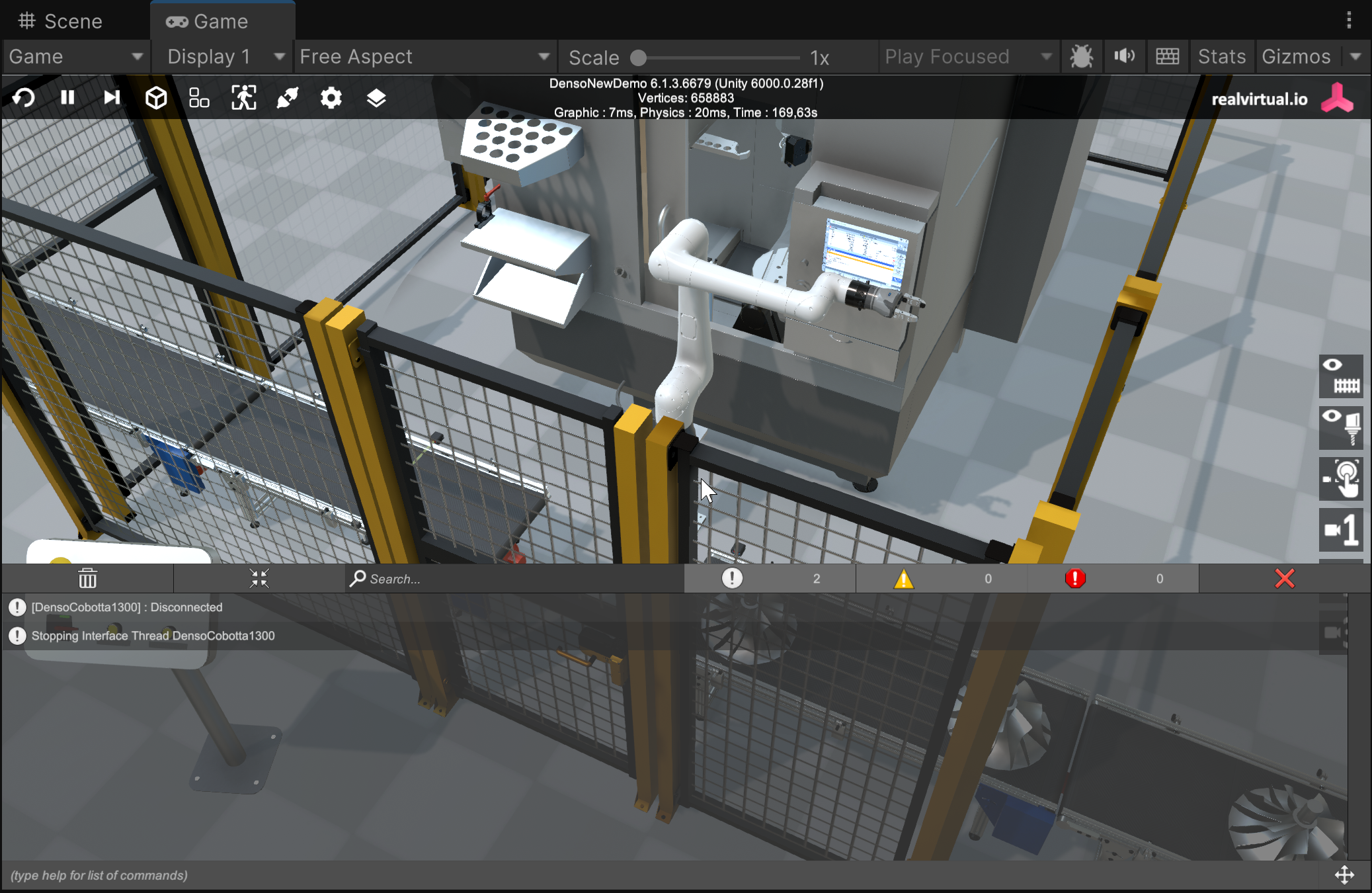
## How to Use the Debug Console
1. **Add the Debug Console Prefab**\
To enable the Debug Console in your project, add the prefab located at:
```
Assets/realvirtual/UIPrefabs/DebugConsole.prefab
```
into your scene hierarchy.
2. **Opening the Debug Console**\
While running the simulation, you can open the Debug Console by clicking in the **bottom-left corner** of the screen.
3. **Console Log Indicators**
* If there are any console log entries, small **icons** and a **log count** will appear to notify you.
* You can review **warnings, errors, and other logs** in real time.
4. **Executing Commands**\
The Debug Console also supports **custom commands**, allowing you to trigger specific functions or modify application settings directly.
## Console Commands
To see a full list of available commands, type the following in the Debug Console's input field:
```
bashKopierenBearbeitenhelp
```
**Available Commands**
| Command | Description |
| ----------------------- | ------------------------------------------------------------------------------------------------------------------------------------------------------------------------------------------------- |
| **ConnectOff** | Disables Connect Mode. This setting is saved for the next start. |
| **ConnectOn** | Enables Connect Mode. This setting is saved for the next start. |
| **DebugOff** | Turns off Debug Mode. The player must be restarted for this change to take effect. *Please note: Not all components take care about Global Debug Mode.* |
| **DebugOn** | Turns on Global Debug Mode in realvirtualController. The player must be restarted for this change to take effect. *Please note: Not all components take care about Global Debug Mode.* |
| **DeletePrefs** | Deletes all PlayerPrefs (everything what is saved with [RuntimePersistence](/basics/runtime-ui/runtime-persistence.md) or saved manually via script). The model returns to the standard settings. |
| **help** | Prints all available commands. |
| **help \[commandName]** | Prints detailed information about the specified command. |
| **InspectorOff** | Disables the Runtime Inspector. The player must be restarted for this change to take effect. |
| **InspectorOn** | Enables the Runtime Inspector. The player must be restarted for this change to take effect. |
For more information about implementing your own commands please check
---
# Agent Instructions
This documentation is published with GitBook. GitBook is the documentation platform designed so that both humans and AI agents can read, navigate, and reason over technical content effectively. Learn more at gitbook.com.
## Querying This Documentation
If you need additional information that is not directly available in this page, you can query the documentation by asking a question.
Perform an HTTP GET request on the following URL with the `ask` and `goal` query parameters:
```
GET https://doc.realvirtual.io/basics/runtime-ui/runtime-debugger.md?ask=&goal=
```
`ask` is the immediate question: it should be specific, self-contained, and written in natural language.
`goal` is what the user is ultimately trying to achieve, the reason they need the answer. Sharing it helps GitBook give you a better, more relevant answer. A goal is most helpful when it describes the outcome the user wants rather than restating the question. For example, with `ask=how do I create an API token`, a goal like `automate deployments from our CI pipeline` lets GitBook tailor the answer to that use case.
The response will contain a direct answer to the question and relevant excerpts and sources from the documentation.
Use this mechanism when the answer is not explicitly present in the current page, you need clarification or additional context, or you want to retrieve related documentation sections.