Customer Portal
The realvirtual Customer Portal at download.realvirtual.io is the central web platform for managing your realvirtual licenses, downloading packages, generating temporary access codes for your team, and viewing invoices.
Getting Started
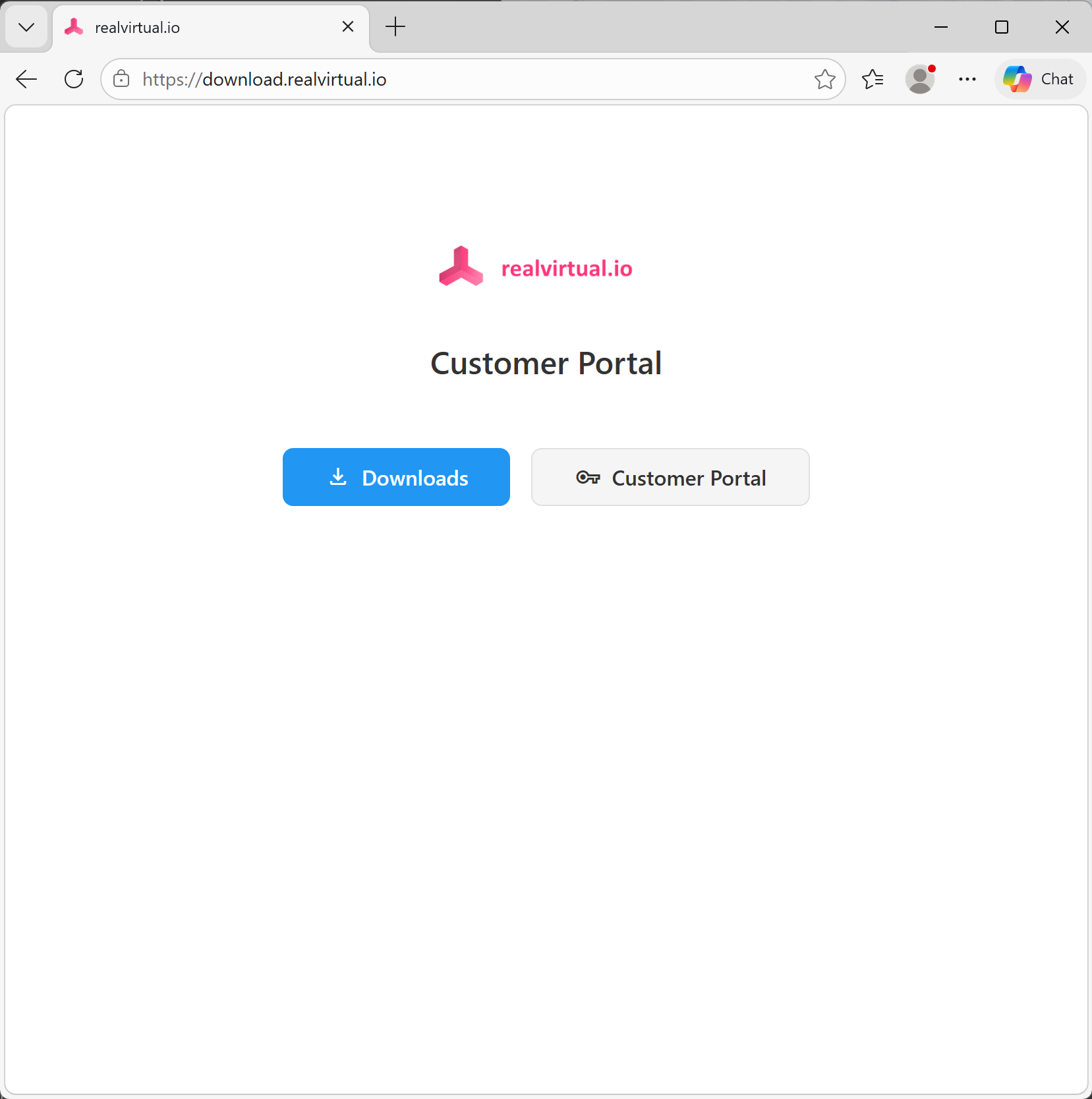
Open download.realvirtual.io in your browser. You will see two options:
Downloads — Download realvirtual Unity packages
Customer Portal — Manage licenses, codes, and invoices

Downloads
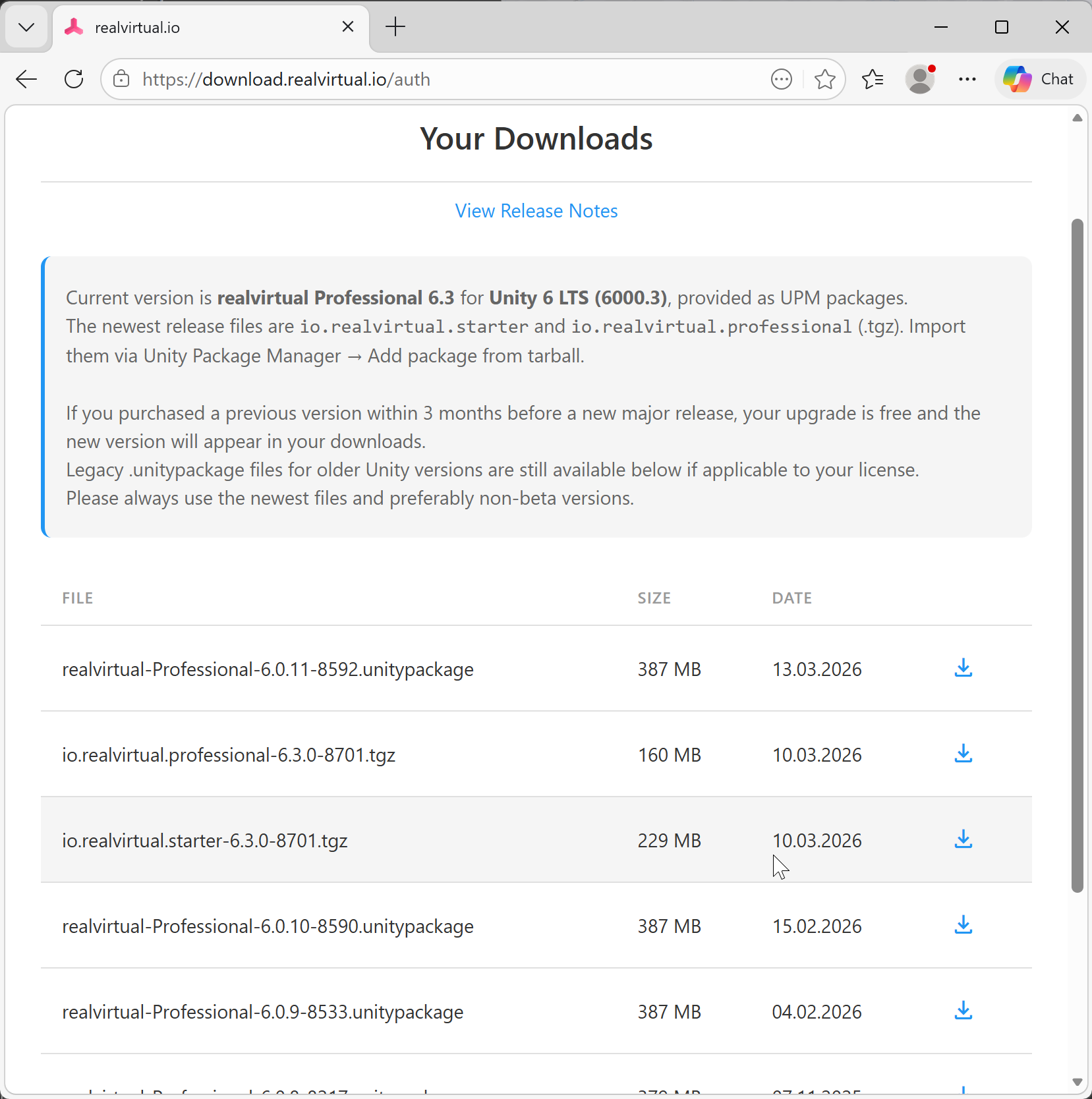
Click Downloads to access your available realvirtual packages. You need to log in with your invoice credentials first (Invoice Number, Billing ZIP Code, Email).
After login, you see all packages available for your license:
UPM packages (
.tgz) — For Unity 6.3+ projects using the Package ManagerLegacy packages (
.unitypackage) — For older Unity versions
Each file shows its size and upload date. Click the download icon to download.

Current version is realvirtual Professional 6.3 for Unity 6 LTS (6000.3), provided as UPM packages. Import them via Unity Package Manager → Add package from tarball.
Customer Portal Login
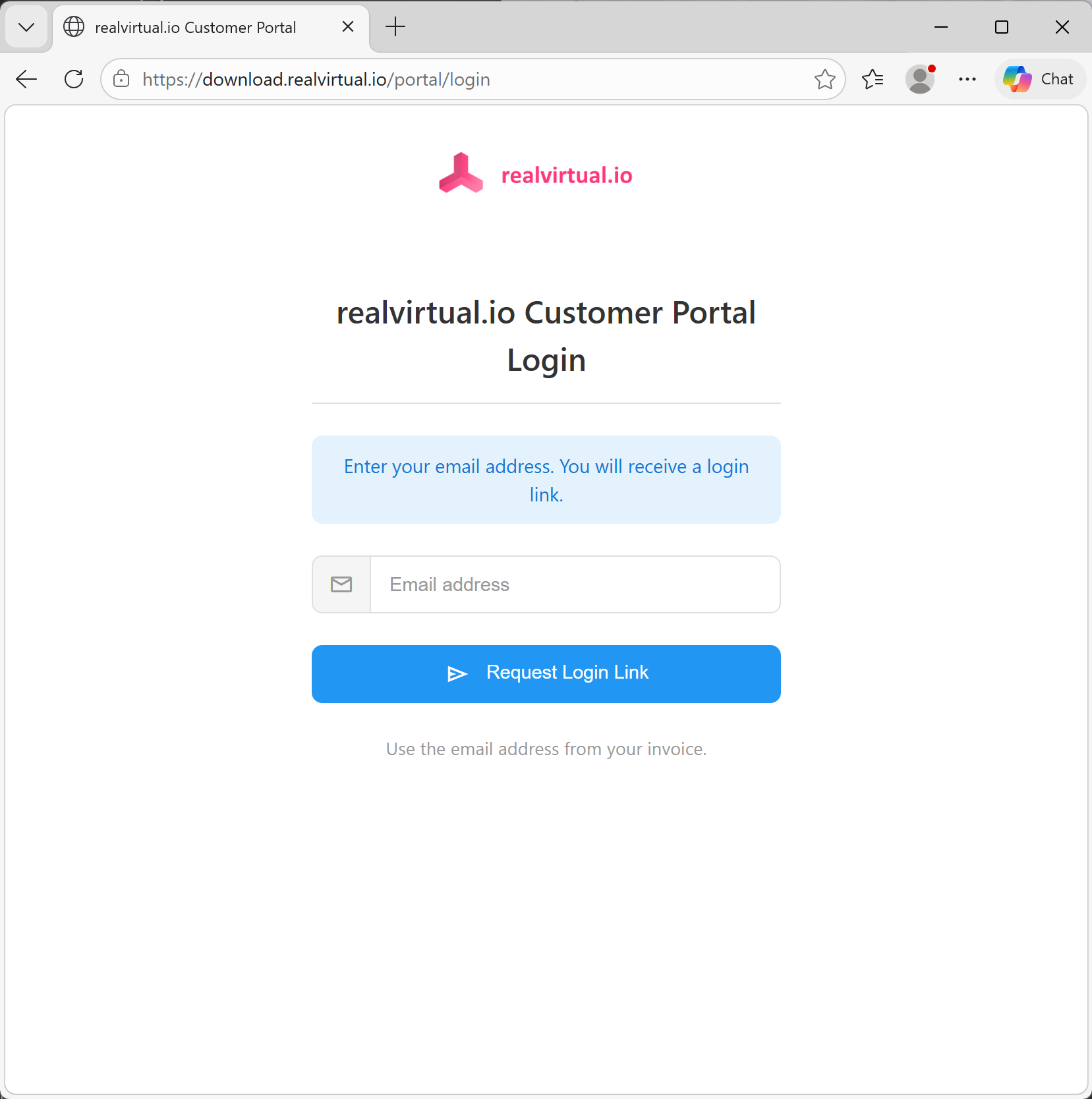
Click Customer Portal to access license management. The portal uses passwordless magic link authentication:
Enter the email address from your invoice
Click Request Login Link
Check your email for the login link
Click the link to access your portal

Use the email address associated with your invoice. If you are unsure which email was used, check your original purchase confirmation or contact support.
Portal Dashboard
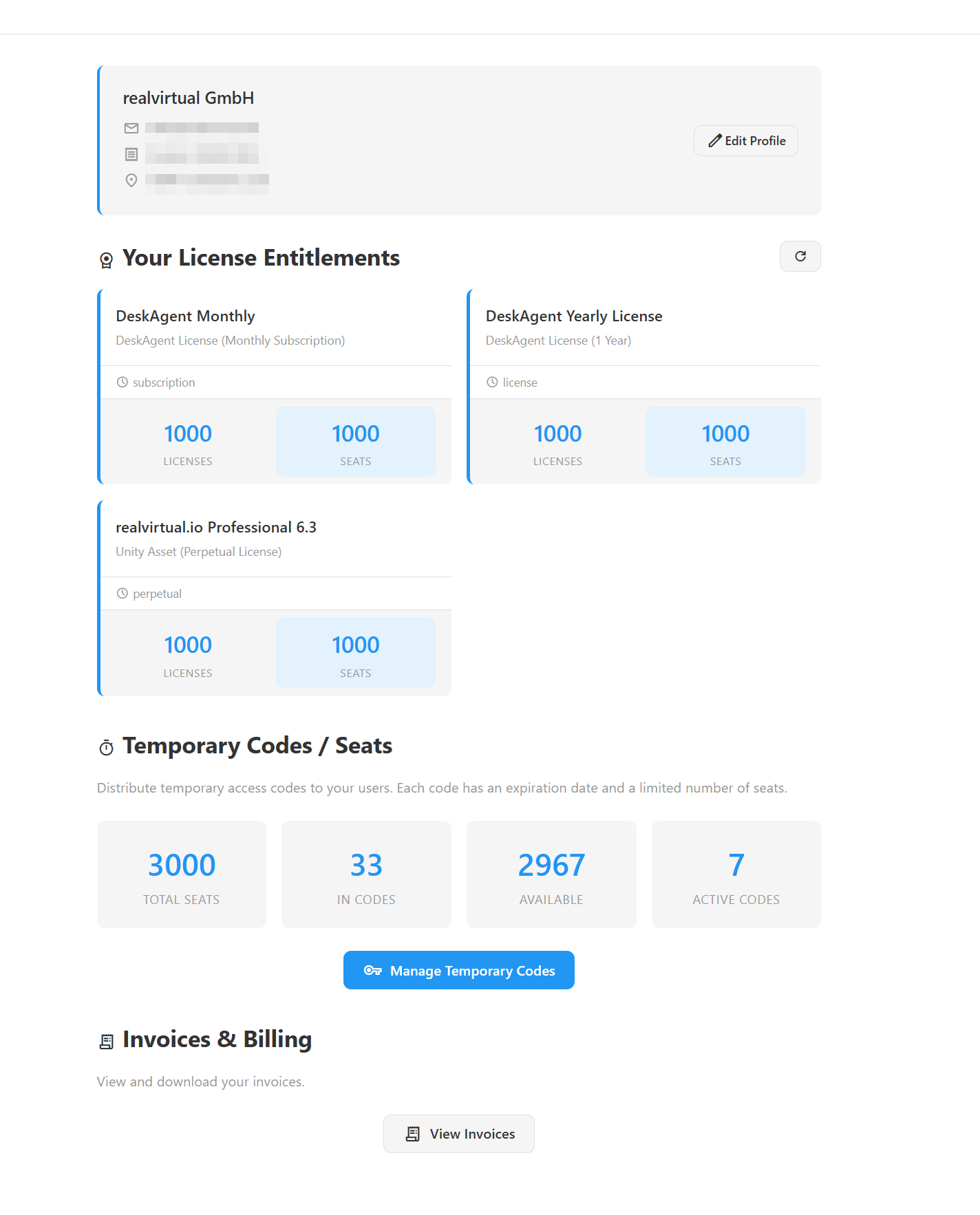
After logging in, the portal dashboard shows your complete account overview:

Your License Entitlements
The License Entitlements section shows all products associated with your account:
Product name and edition (e.g., realvirtual.io Professional 6.3)
License type — perpetual, subscription, or monthly
Total licenses and seats available
Temporary Codes / Seats
Temporary codes let you distribute access to your team members. The overview shows:
Total Seats — Your total seat pool across all products
In Codes — Seats currently allocated to generated codes
Available — Seats still available for new codes
Active Codes — Number of currently active codes
Click Manage Temporary Codes to create and manage codes.
Invoices & Billing
Click View Invoices to see and download your invoices as PDF.
Temporary Code Management
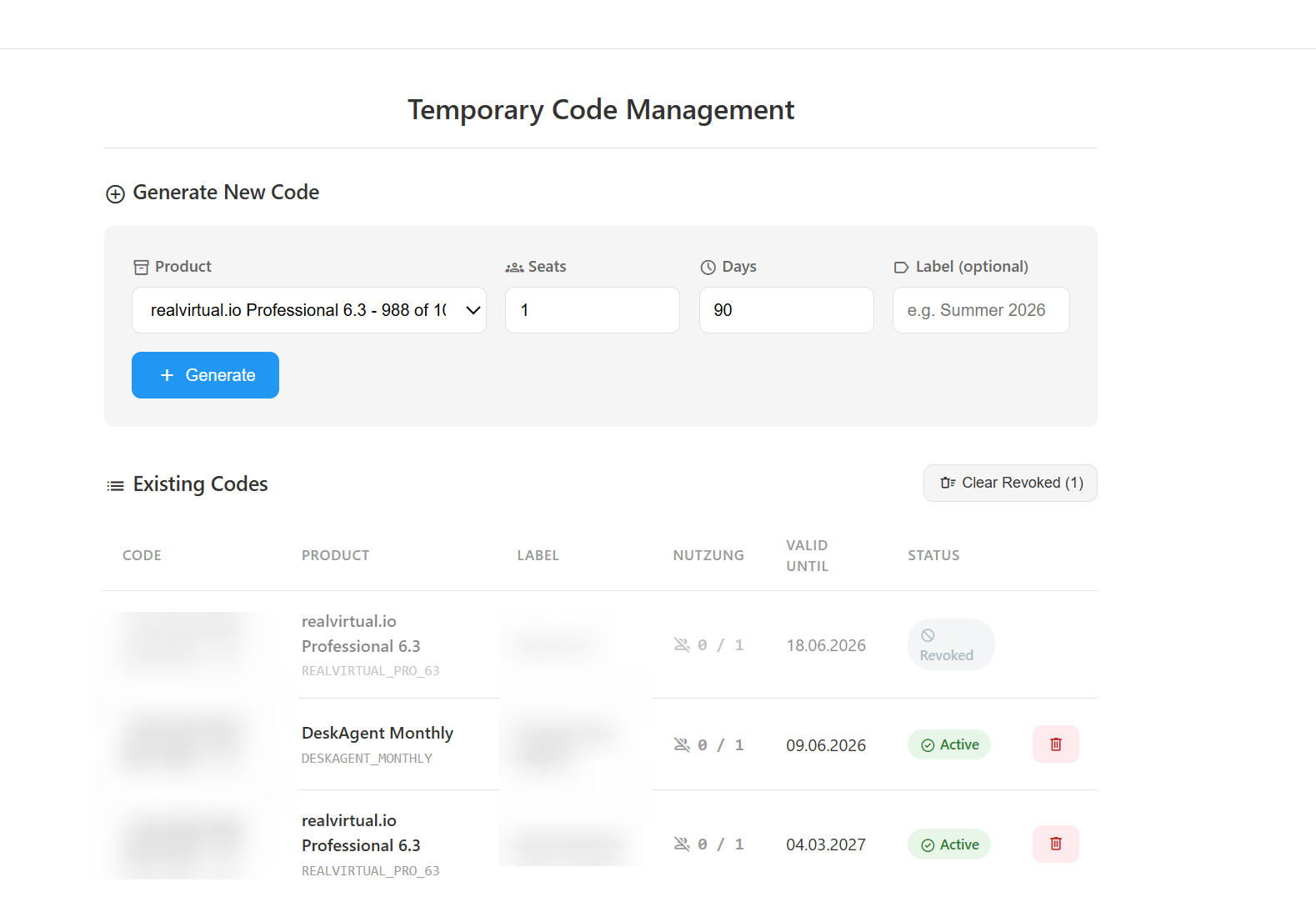
The code management page lets you generate, track, and revoke temporary access codes for your team.

Generating a New Code
Select the Product from the dropdown
Set the number of Seats (how many users can use this code simultaneously)
Set the Days until expiration (max 365)
Optionally add a Label for identification (e.g., "Summer 2026" or "Team Berlin")
Click Generate
The generated code will appear in the Existing Codes list below.
Managing Existing Codes
Each code shows:
Code
The access code to share with users
Product
Which product the code grants access to
Label
Your custom label for identification
Nutzung
Current usage: active sessions / total seats
Valid Until
Expiration date
Status
Active, Expired, or Revoked
You can revoke active codes by clicking the delete button. Unused seats are returned to your pool immediately.
Using a Temporary Code
Share the generated code with your team member. They enter the code in the Unity User Hub (Tools > realvirtual > User Hub) to activate their seat. See Login & Download Updates (Pro) for details on the Unity-side setup.
Partner Keys
If you received a Partner Key (in the format PK-XXXX-XXXX-XXXX) from your sales partner, you can use it to activate your realvirtual license directly in Unity.
Activating a Partner Key in Unity
Open the Unity User Hub via
Tools > realvirtual > User HubEnter the Partner Key (
PK-XXXX-XXXX-XXXX) in the Code fieldEnter your Email address
Click Login
Your license activates immediately. You can start using realvirtual Professional right away.
Partner Keys track concurrent sessions — when you close Unity, your seat is freed for others. If your organization also has a direct license (via invoice), the Partner Key seats are tracked separately.
If you see a "No seats available" error, all seats on the Partner Key are currently in use. Contact your sales partner to request additional seats or wait for a seat to become available.
See Also
Login & Download Updates (Pro) — Managing licenses from within Unity
Installation — Installing realvirtual packages
Last updated